
This guide provides essential instructions for using CoverManager effectively to streamline customer searches and manage reservations across multiple restaurants. It highlights features such as notification tracking, waitlist filtering and availability checking, all of which are designed to improve operational efficiency.
1. Clicking here will open a drop-down menu to change restaurant.

2. Here you can search for a customer or booking reference.

3. Select to search for clients or booking references in the group.
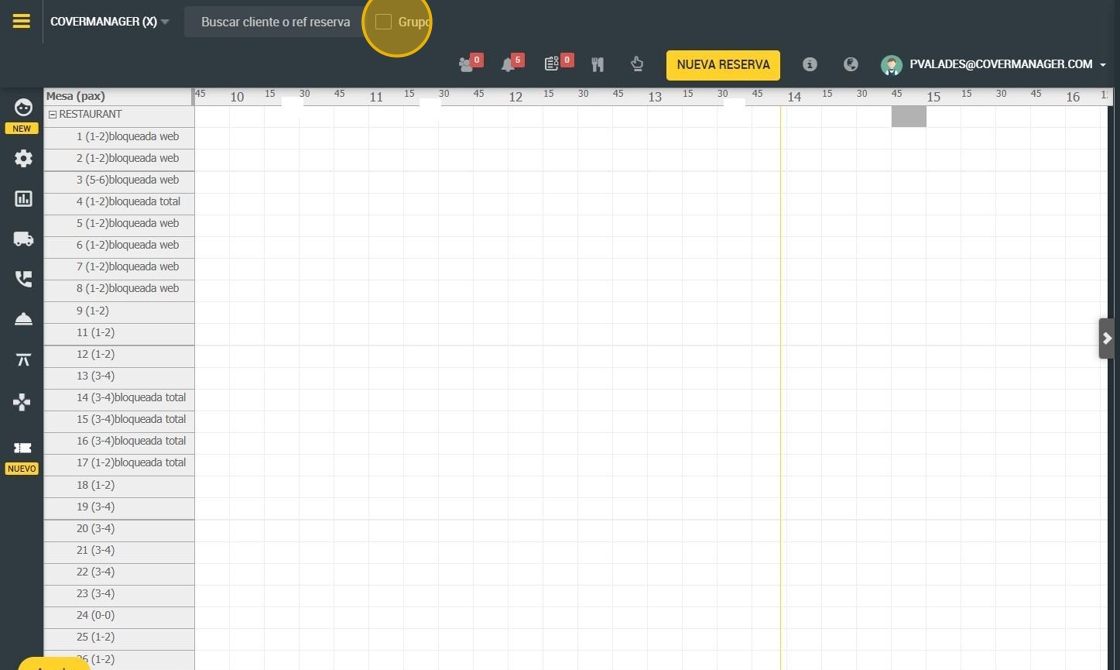
4. Group booking icon, will appear here detailed and the notification if you have one that you have not seen.

5. New notifications will be displayed in the bell icon.

6. If you have pending waiting list, a number will appear with the amount. **You can also filter by date and time.

7. Click here to see the occupation.

8. The occupancy button can be filtered by dates .
Also if you have more than one restaurant, they will appear together for an overview.
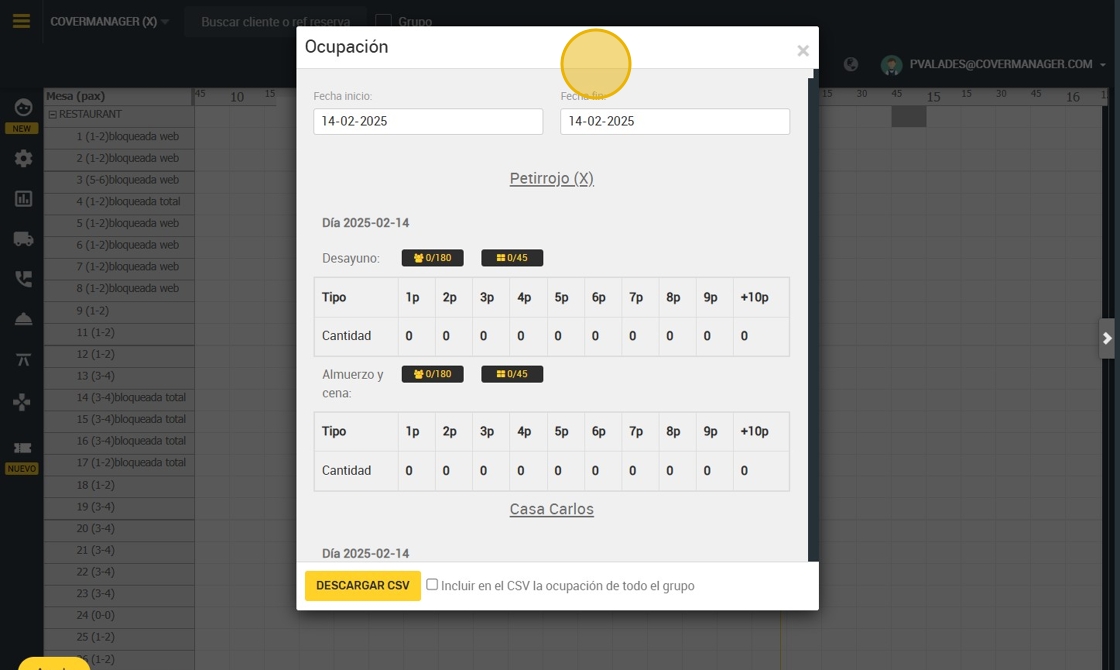
9. Select whether to include in the CSV the all group occupancy.

10. Click to download the CSV.

11. Click to search availability.

12. Here you can select the date.

13. Write the number of people.

14. Select the time.

15. Click “SEARCH AVAILABILITY”.

16. Click here to make a new reservation.

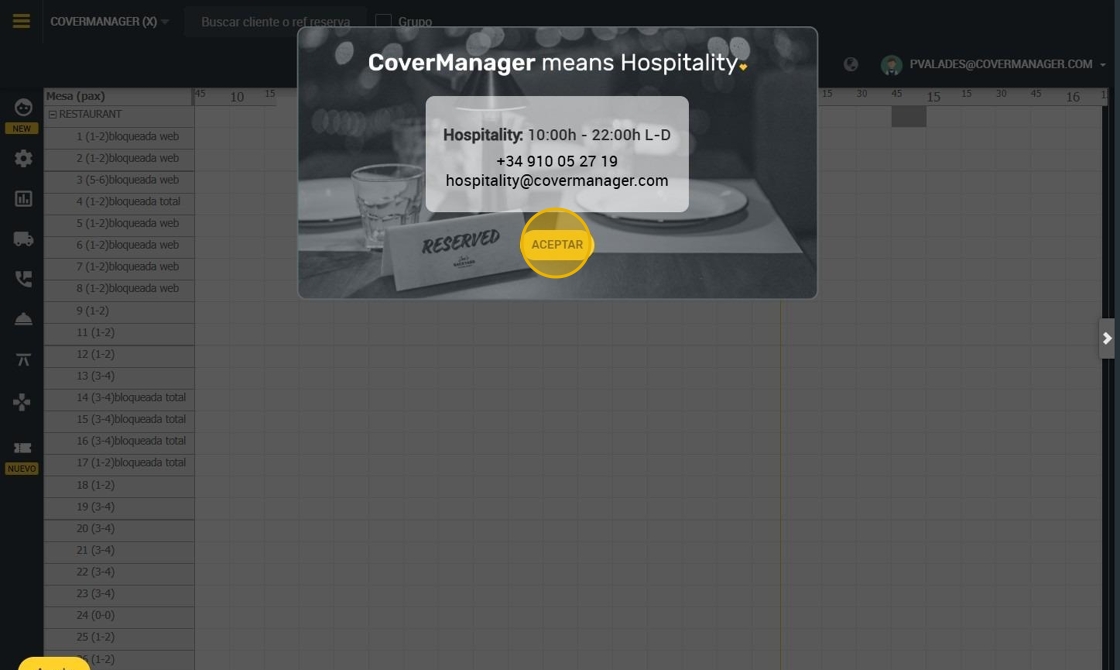
17. If you click here you can see the information.

18. Here you will find Hospitality's hours of operation, phone number and mailing address.
19. Here you can change the language.

20. If you click on the profile icon you will be able to access:
-Settings
-Profile
-Invoicing
-Collection management
-Operator
-Exit
