
This guide is essential for those who wish to simplify the process of importing tickets into PremiumGuest, facilitating efficient event management. It provides step-by-step instructions, including downloading a helpful Excel format for entering customer data, ensuring that all necessary requirements are met. In addition, it provides tips on how to verify that the import was performed correctly, ensuring a smooth experience for the event organizer and attendees.
1. Click "Events".

2. Select the business or search by date/name.

3. Click “Tickets sold”.
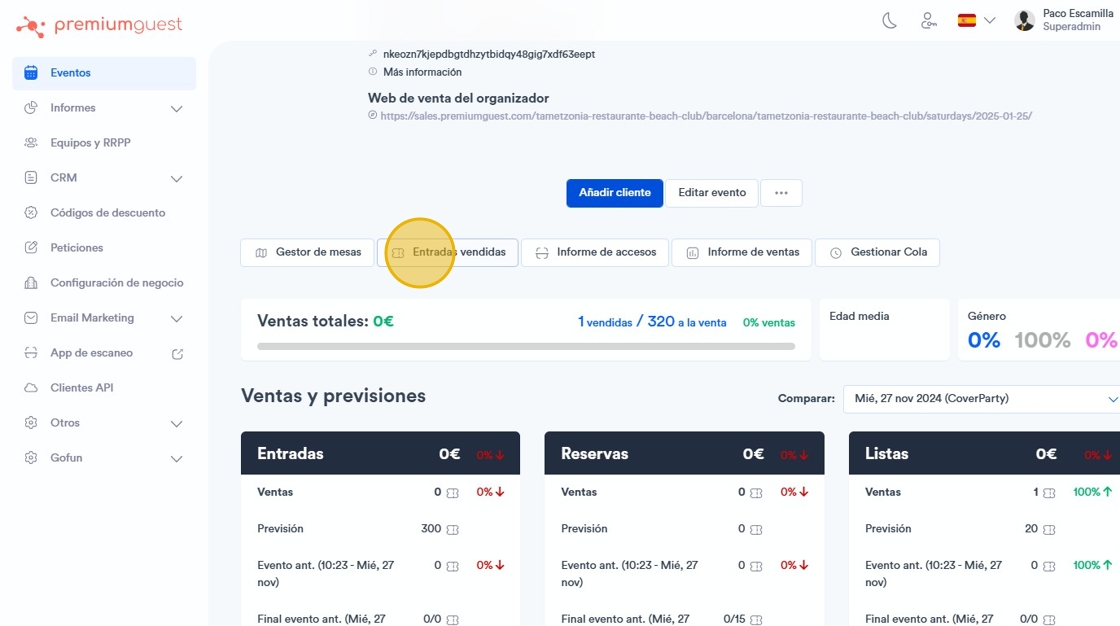
4. To import entries, click on the three dots next to ¨add client¨.

5. Click "Import tickets".

6. At the top of the first paragraph, in the word “here”, if you click on it, an Excel document is downloaded; it will help us to import customer data.

7. When you open it, you will find this model:

8. These are the required fields you must fill in to upload the document to the event. You can look at the example:

9. Import the file from the computer.

10. Select type of access.

11. Select your promotion team.

12. You can also choose the format..

13. You may attach the payment statement.

14. If you want to send tickets to all importers click on the square.

15. Click “Import”.
When importing, everything will be saved in the “Ticket list”, in the “sold tickets” section all the imported tickets will appear:

16. When importing, everything will have been saved in the "List of tickets ‘, in the ’Sold tickets ” section all the imported tickets will appear:
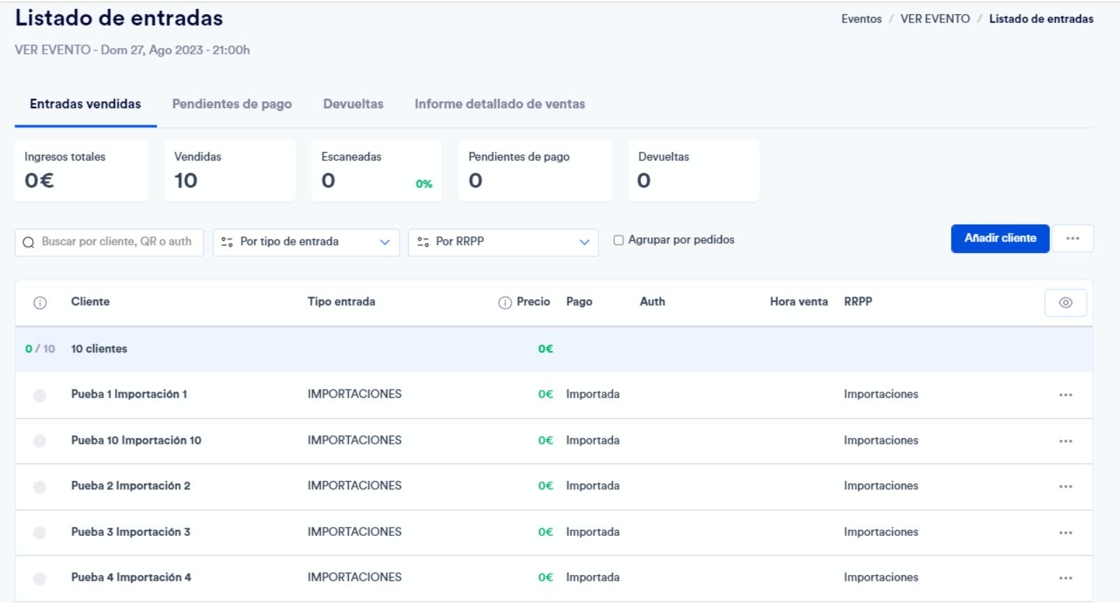
17. To find out if the import was successful, you can check by downloading an entry:
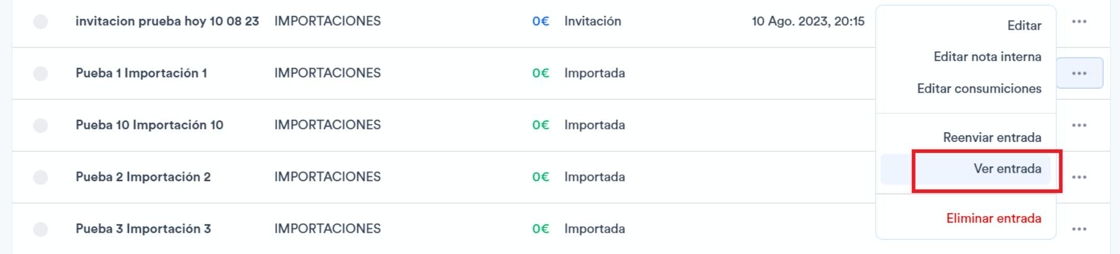
Tip: A new tab will open in the browser with the entry, which you can validate by scanning it in the Scanning App, if it validates correctly, the import is successful.
Alert: Finally, you must invalidate the ticket in the Scanning App itself, in the Tickets section, so that the person can use it on the day of the event.