
This guide provides essential instructions for accessing and managing retention guarantees within Covermanager, a crucial tool for tracking bookings that may incur penalties. By understanding how to use this feature, users can maintain accurate financial records and effectively address any disputes that may arise. Overall, it streamlines policy compliance monitoring.
1. Click on the “user” icon in the top right corner and click on “User management”.
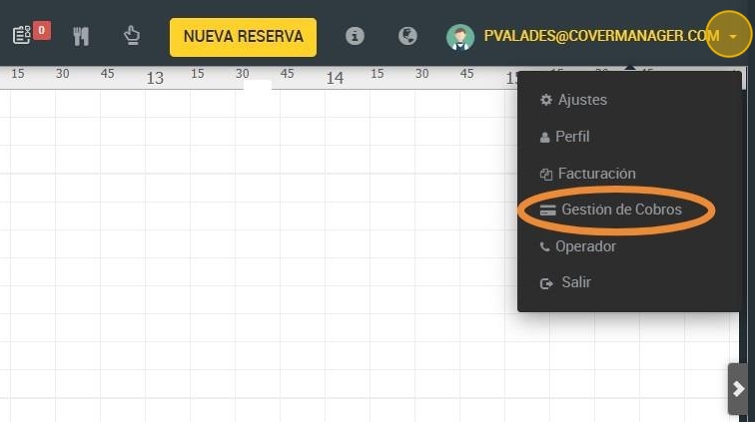
2. Click “Withholding Guarantee”.

3. This is the Withholding Guarantee Screen. Here you can view and keep track of all bookings that are subject to penalty for non-compliance with the policy.
This is important for accounting purposes and to resolve any disputes that may arise.

4. Click here if you want to execute the collection.

5. If you want to return it, click here.

6. Example of withholding information.

7. Retention guarantee information ( info shown in the header ).

Tip: What happens if we have to modify a reservation, for example the day of the reservation or the number of people?
The restaurant will only have to worry about modifying the parameters it considers, it does not have to ask the customer for the card again, the system itself will modify the retention according to the changes that have been made.