
This guide provides essential instructions for managing a customer database within a CRM system. Users will learn how to effectively unify customer records, remove duplicates and add new customers, ensuring data integrity across all locations.
Tip: This list of group customers will only be visible for restaurants that belong to a group. In case the restaurant is not part of a group, the standard list will be displayed, without any modification.
1. Click on the “face” icon on the left to open “CRM”.

2. Click “Customer List”.

3. In “Customer's origin” appears the establishment where the customer made the first reservation.

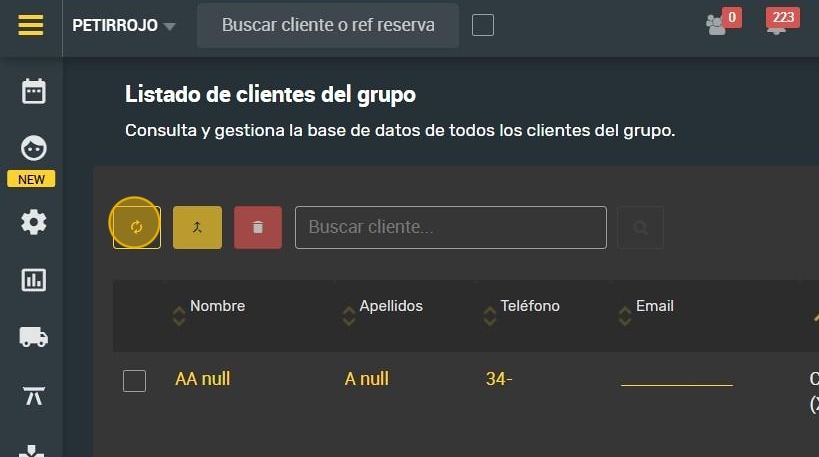
4. Click on the icon to update the list. The list will not be updated automatically.
Tip: To unify clients:
Alert: It is only possible to unify clients if they all belong to the establishment from which the action is requested.
5. To enable the button, you must select at least two records from the list.

6. Click on the icon to unify the clients.

7. If you try to merge records that do not belong to the same establishment, an alert dialog is displayed:

8. If the restaurant that intends to unify the records is the one to which the records belong, it must decide which record will prevail:
9. When you have selected the customer that will remain and to which the selected customers will be merged, click on “MERGE CUSTOMERS”.

Tip: To delete a customer:
Alert: You can only delete records that belong to the current restaurant.
10. Select the customer you want to delete.

11. Click on the “trash can” icon.

Alert: This action is irreversible and will affect the entire group database.
12. Click “REMOVE CUSTOMER”.

13. If you try to delete a customer who is not from your own establishment, this warning will appear.

Tip: To find a customer
14. Here you can search for a customer.

Tip: To add a new customer:
15. Click “+ ADD NEW CUSTOMER”.

16. Enter all the necessary information and click “ADD CUSTOMER” when finished.

Tip: To update data from the list:
Alert: In case the record does not belong to the current restaurant, the color of the data will be the same but the item will not be clickable and therefore, not editable.
17. By clicking on the clickable data of a different color in the list, a quick edit can be made as long as the record belongs to the current restaurant.

18. When you have edited it, click on “UPDATE”.

Tip: To download the reservation report:
19. Click on the “cloud” icon to download the booking report.

Tip: To view the client's record:
20. To view a record's complete record, click on the record's “eye” icon.

Tip: If the customer belongs to the current restaurant, you will be able to edit, merge or delete it. Otherwise, the buttons will be disabled.
21. In the customer's card you can see the data in:
-Setting: data and behavior of the customer in the license.

22. -Group: data and customer behavior at group level, you will be able to know where and when was their last visit and how much they spent.
