
This guide provides a step-by-step process for customizing legal texts for your web engine and online store, ensuring regulatory compliance. It allows stand-alone configuration on various platforms such as CoverAtHome and OnTheGo, while providing options to customize texts in multiple languages.
1. Click on the “user” icon in the top right corner and click on “Settings”.

2. Click "Legal".
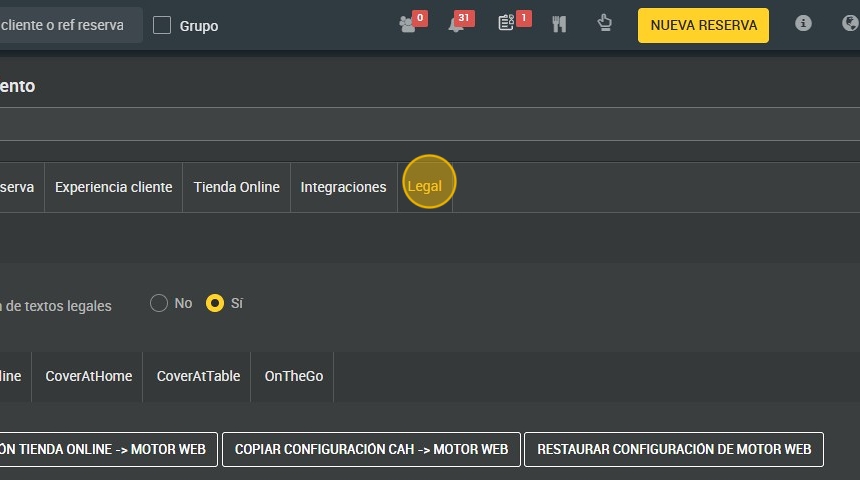
3. Click “Yes” to make a custom configuration of legal texts.
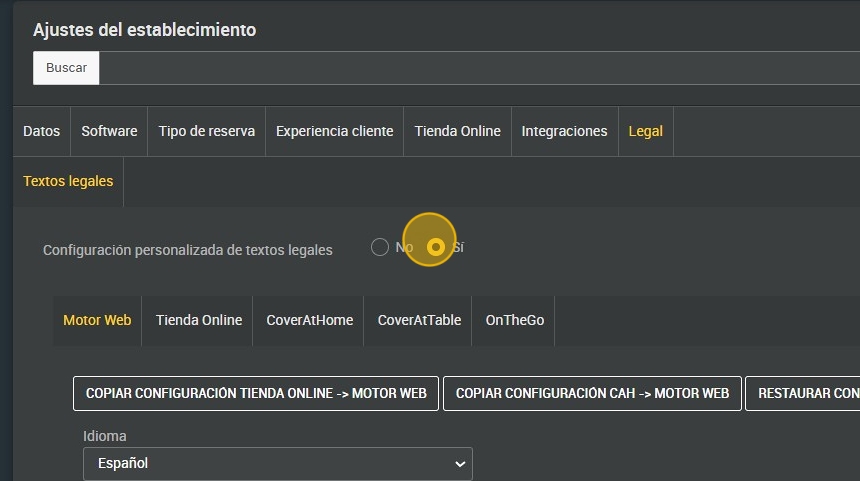
Tip: It is possible to configure the web engine, the online store, CoverAtHome, CoverAtTable and OnTheGo independently, but they all have the same options.
4. Click “Web Engine” to configure this one, you can copy the configuration you have set in the others.

5. Select the language.
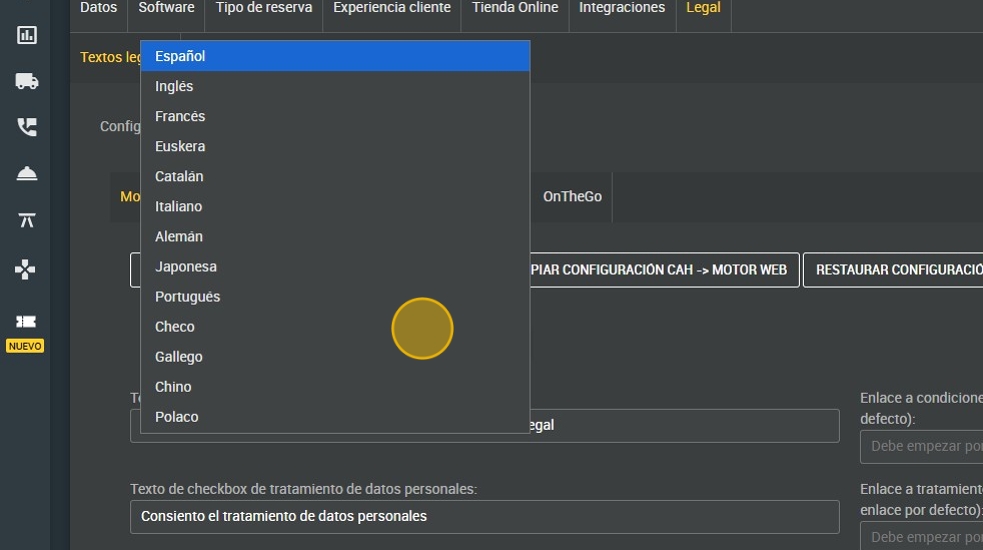
6. Type the conditions of use checkbox text.

7. Enter the link to terms of use (leave empty for default link).

8. Click on the link to the terms of use.
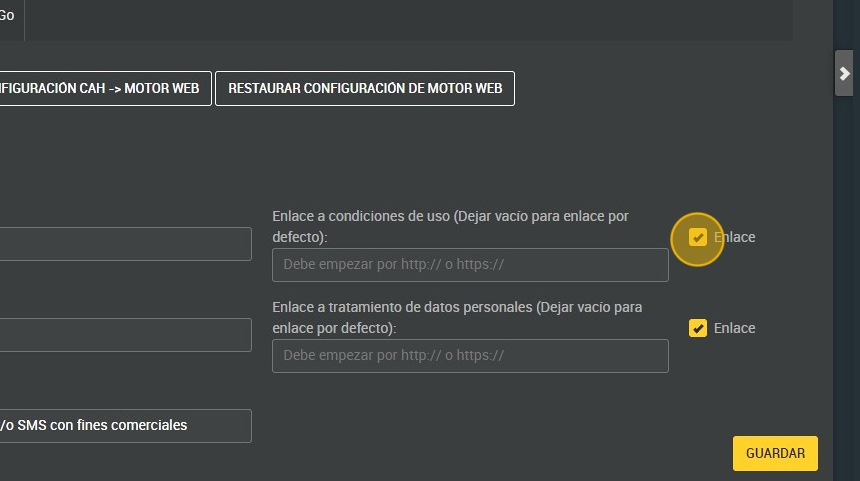
9. Type the Personal data processing checkbox text.
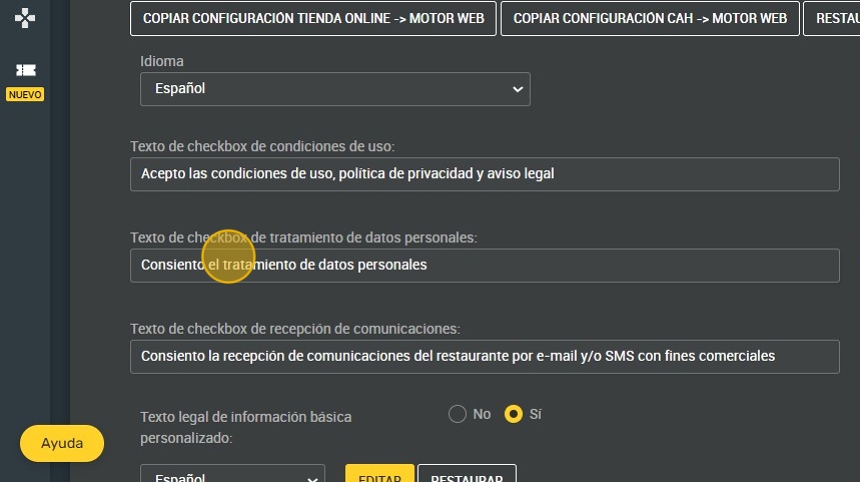
10. Enter the link to personal data processing (leave empty for default link).

11. Click on the link to the terms of use.

12. Type the communications reception checkbox text .

13. Click “Yes” to customize the legal text of basic information.
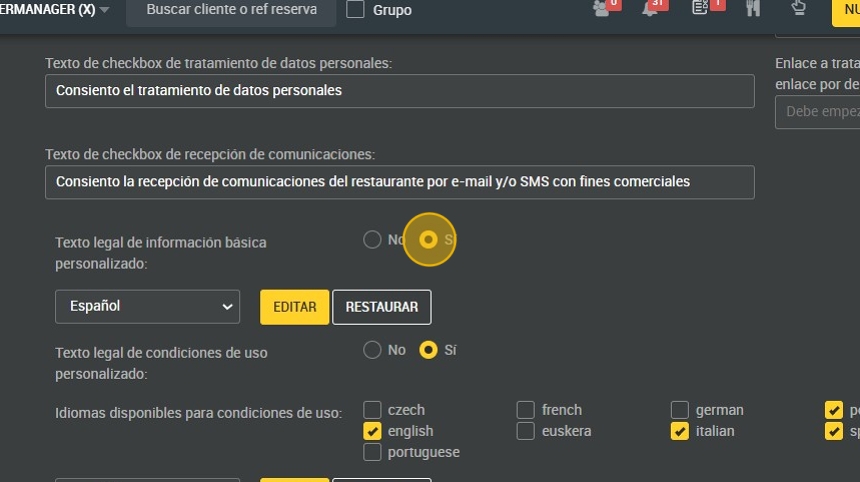
14. Click on “edit” if you want to edit the text.

15. You can edit it here.

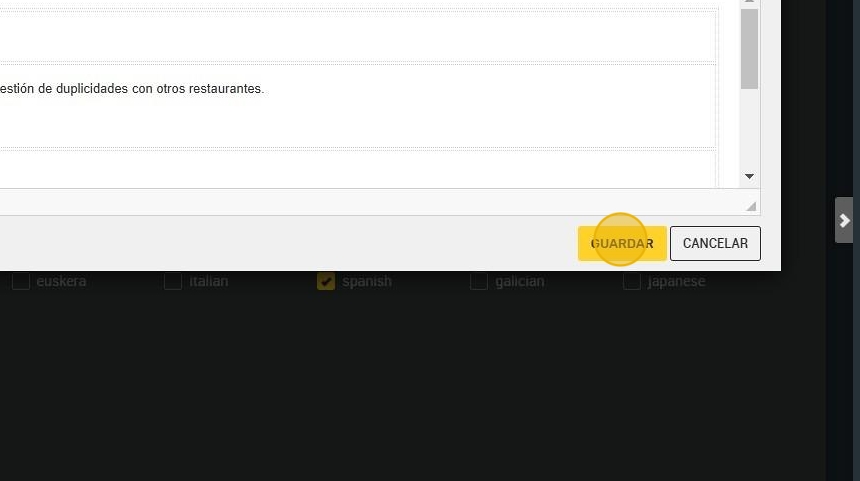
16. Click “SAVE” when you have edited it.
17. Click “Restore” to restore the template.

18. Click "YES".

19. Click “yes” to customize the legal text of terms of use.

20. Here you can select the languages of your choice.

21. Click “Yes” to customize the legal text of personal data processing.

22. Here you can select the languages of your choice.

23. Click “Yes” to show acceptance of terms of use checkbox.

24. Click “Yes” to show consent checkbox for personal data processing.

25. Click “Yes” to show communications consent checkbox.

26. You can choose to position the newsletter consent checkbox at the top or at the bottom.

27. Click “Yes” to check the newsletter consent checkbox by default.

28. You can choose to position basic legal information above or below legal checkboxes.

29. Click “Yes” to make subscription to the Newsletter mandatory for booking.

30. Click "SAVE".
