This guide provides a step-by-step approach to effectively integrate and activate various email marketing services such as Mailchimp, Brevo, E-goi, GetResponse and Mailjet with your account. By following these instructions, users can easily synchronize their customer data and optimize their email marketing efforts, ensuring better engagement and targeted communication.
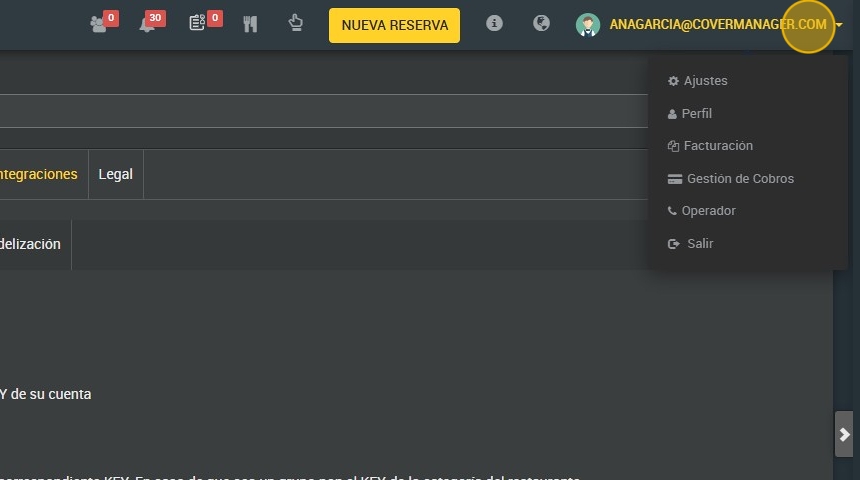
1. Click on the “user” icon in the upper right corner and click on “Settings”.
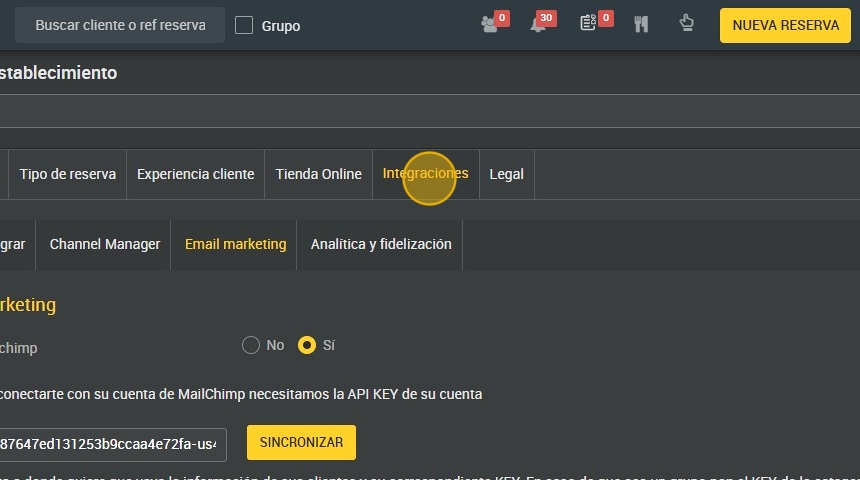
2. Click "Integrations".
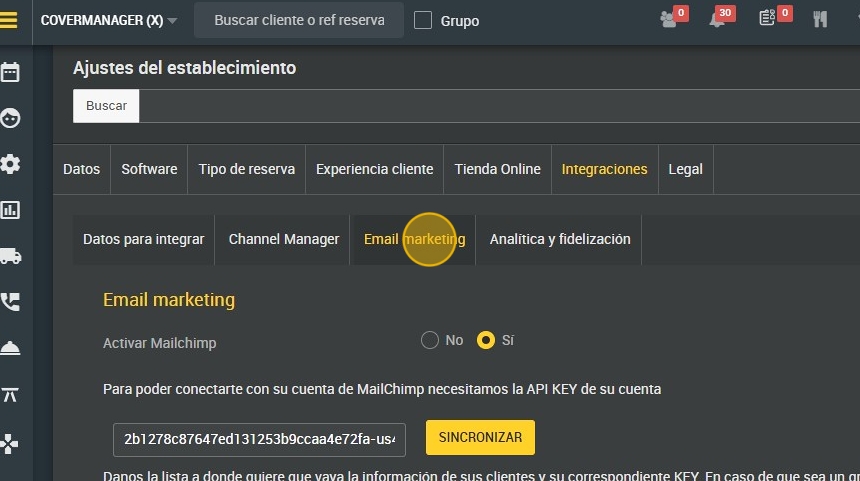
3. Click "Email marketing".
4. Click “Yes” to activate Mailchimp.
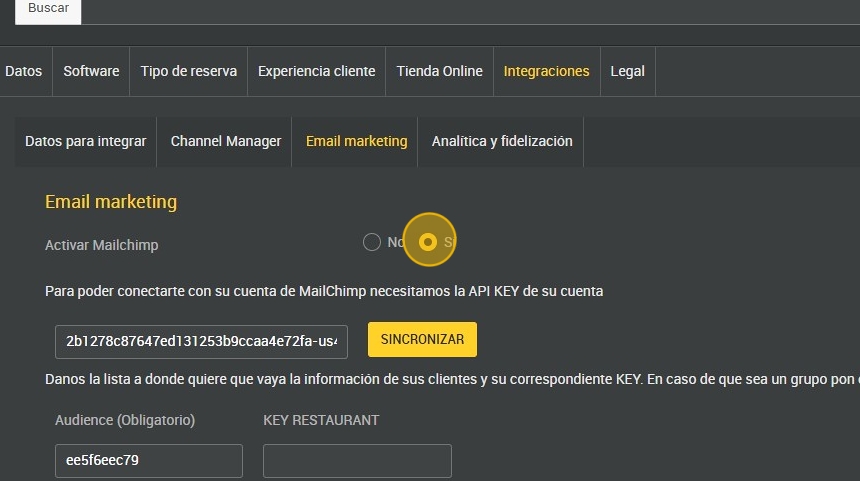
5. Enter the API KEY of your account to be able to connect. It is a unique and confidential key that an application or service uses to identify and authenticate a user or another application when interacting with an API (Application Programming Interface).
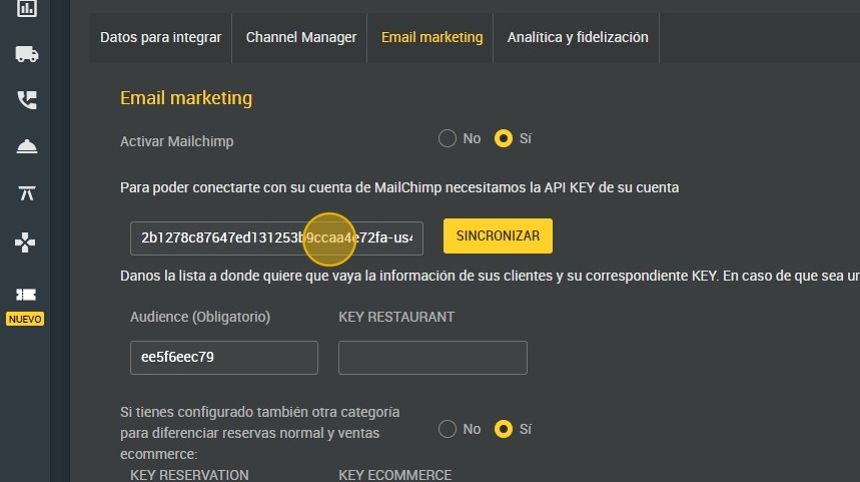
6. Click “Synchronize”.
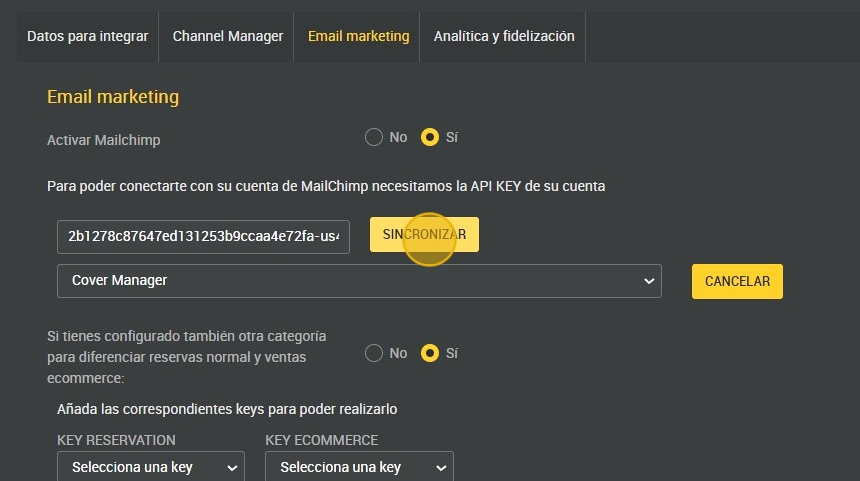
7. Click “Yes” to differentiate between normal bookings and ecommerce sales if you have configured another category.
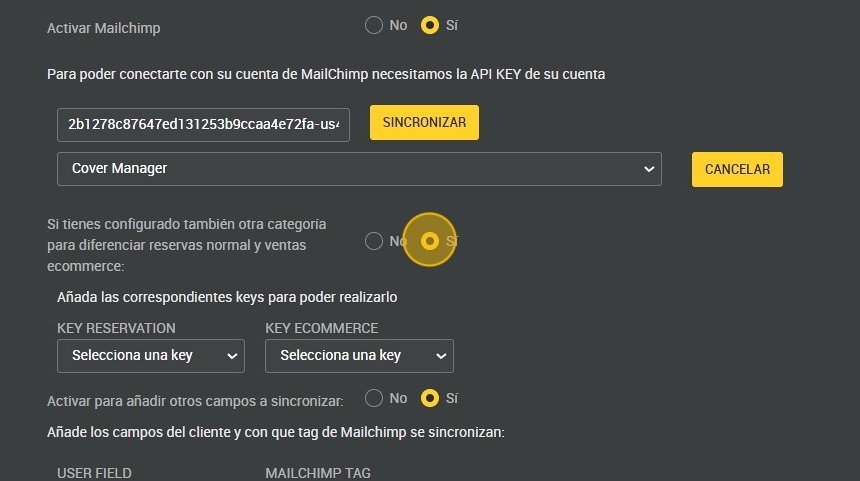
8. Add the corresponding keys to be able to do so.
Key reservation: these are the lists where the customers are stored.
Key ecommerce: these are the customers who have some kind of gift voucher or promotion.
What is it for? If there is a campaign and you want to send emails to a type of user, who is for example a “spender”, “of a certain year of birth” and a regular gift voucher buyer, you can use the “Key Reservation” and “Key Ecommerce” to filter them.

9. Select the customer field.
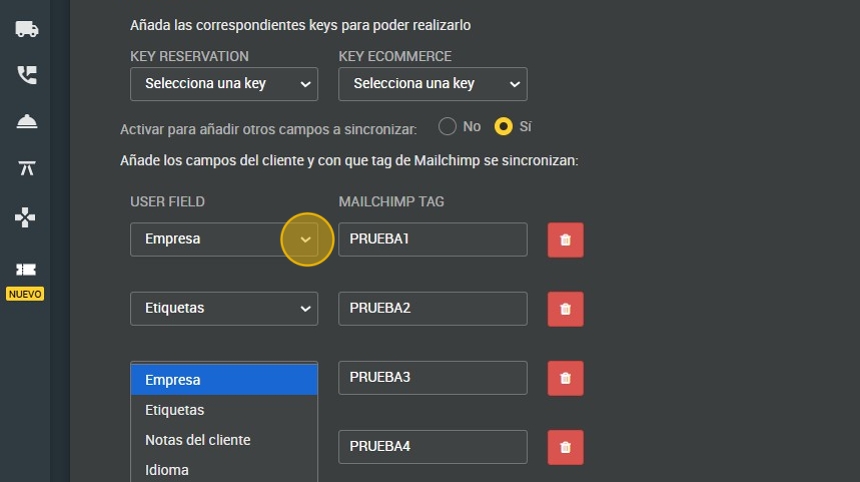
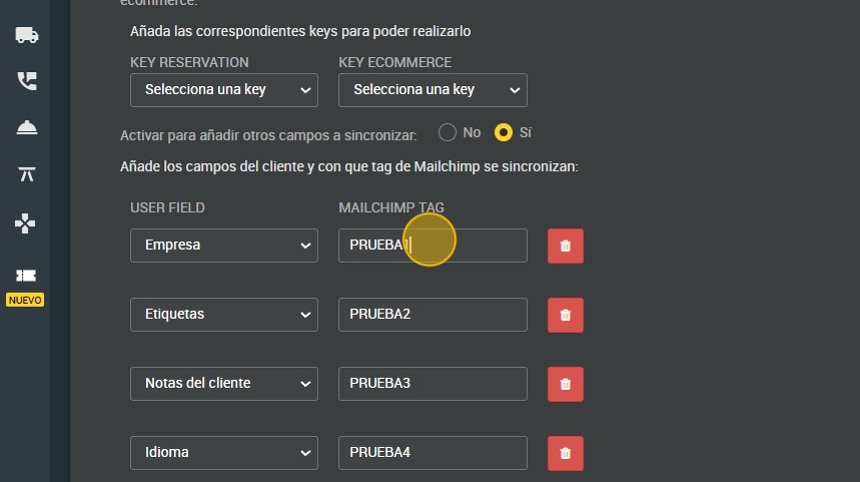
10. Type which Mailchimp tag to sync with.
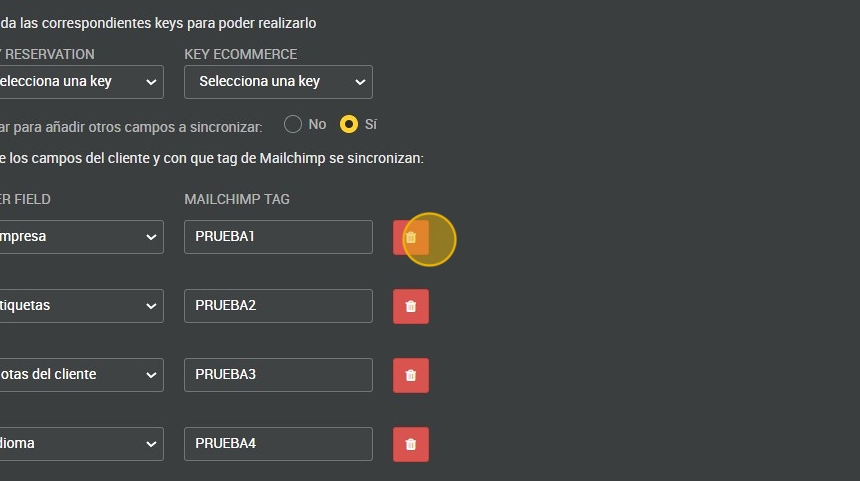
11. Click on the “trash can” icon to delete.
12. Click “ADD FIELD” if you want to add a new field.

13. Click “Yes” to activate Brevo.
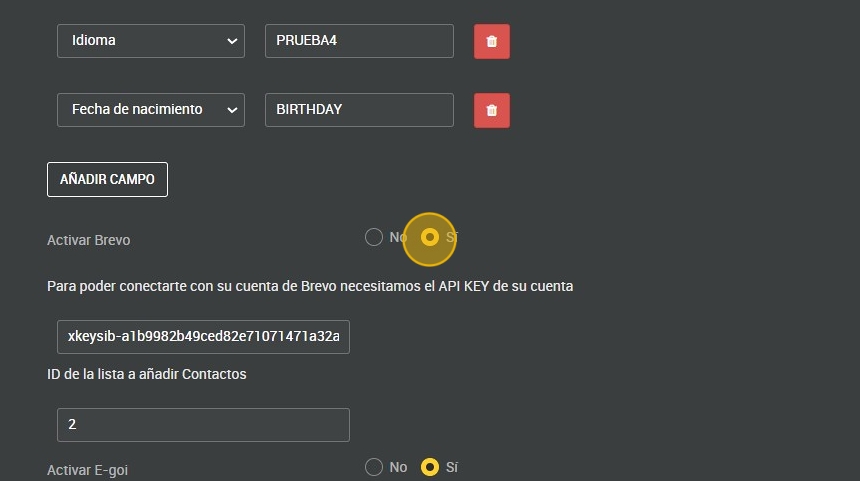
14. Enter the API KEY of your account.
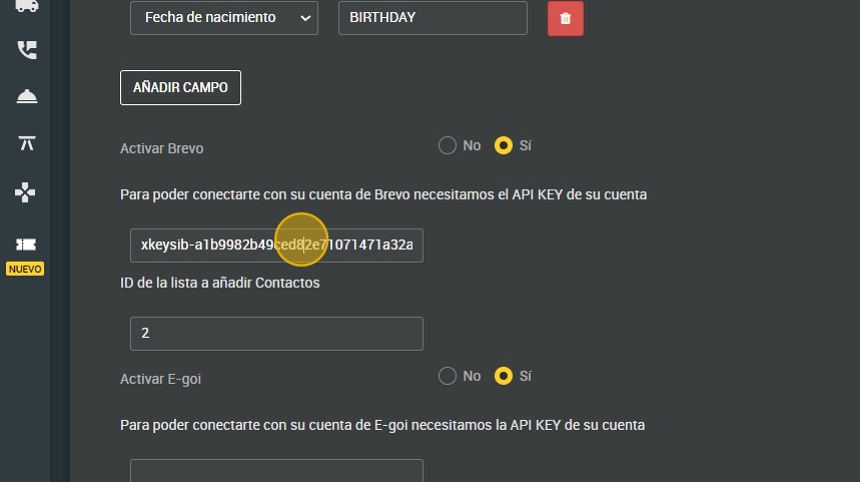
15. Enter the ID of the list to add Contacts.

16. Click “Yes” to activate E-goi.
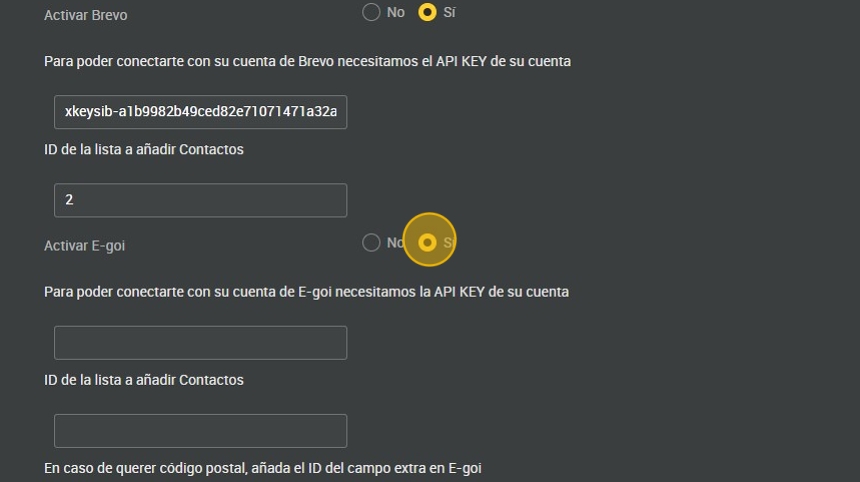
17. Enter the API KEY of your account.
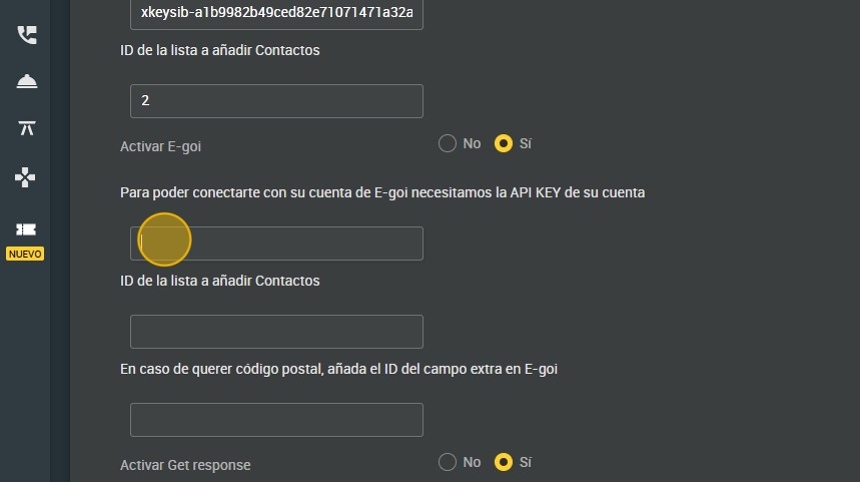
18. Enter the ID of the list to add Contacts.
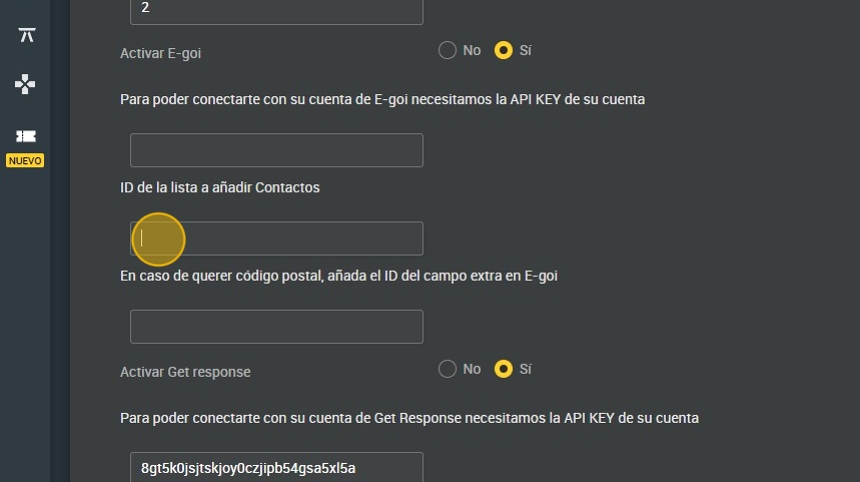
19. In case you want zip code, add the ID of the extra field in E-goi.
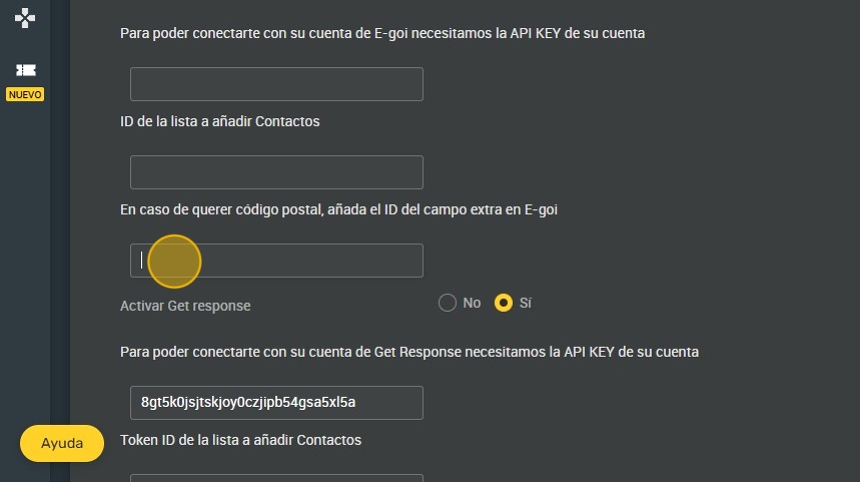
20. Click “Yes” to activate Get response.
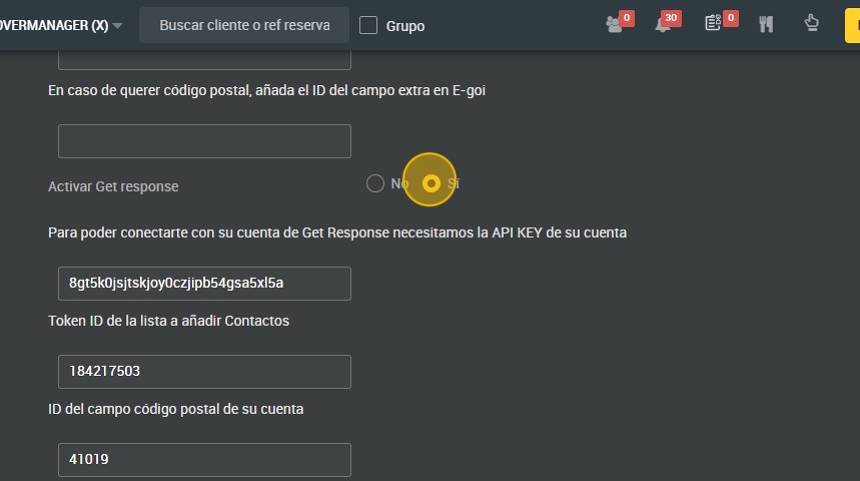
21. Enter the API KEY of your account.
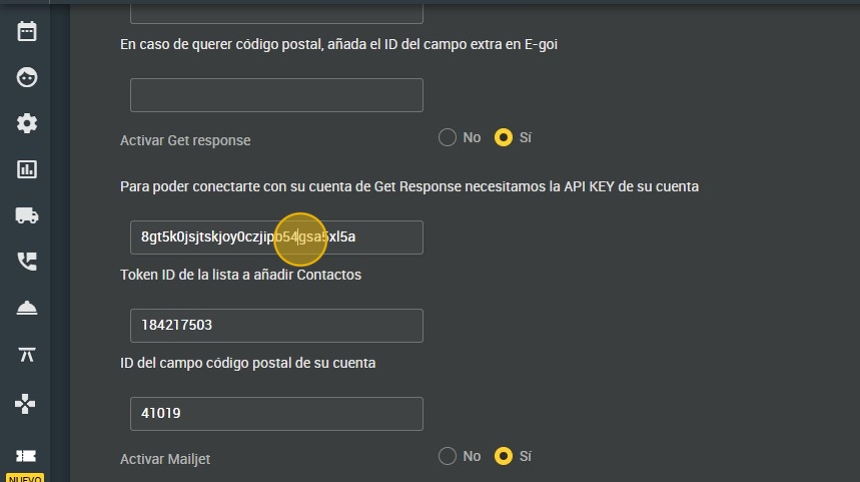
22. Enter the TOKEN ID of the list to add Contacts.
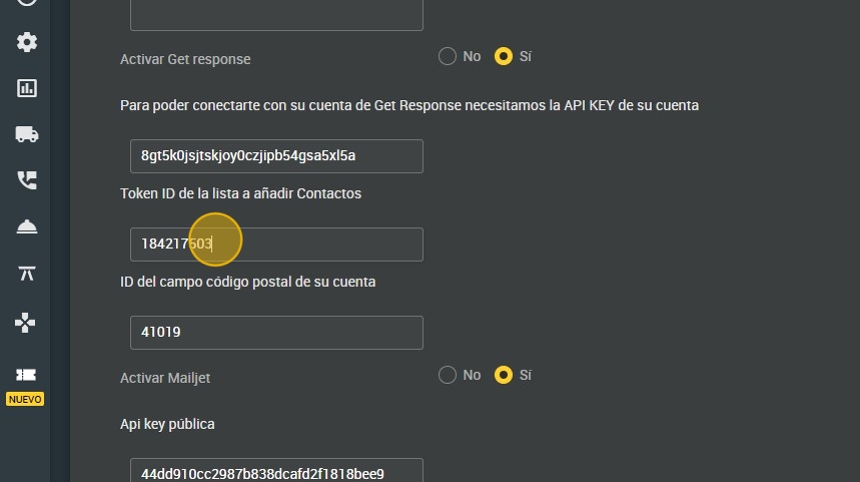
23. Enter the ID of the zip code field of your account.
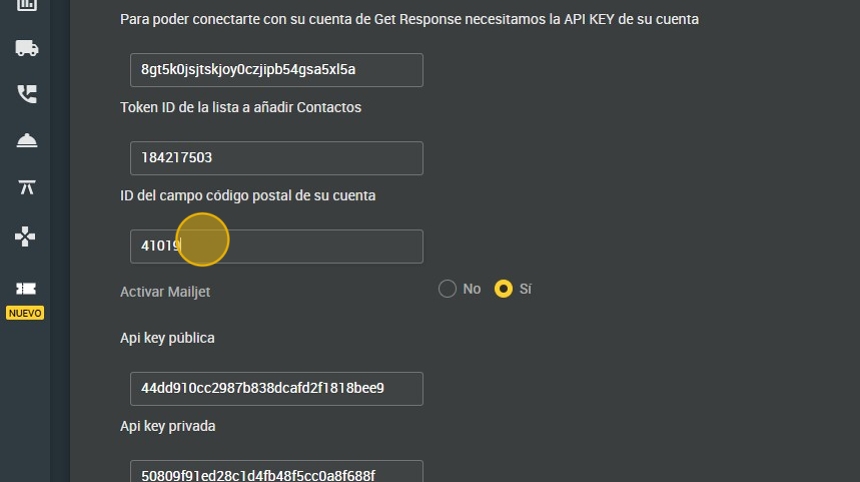
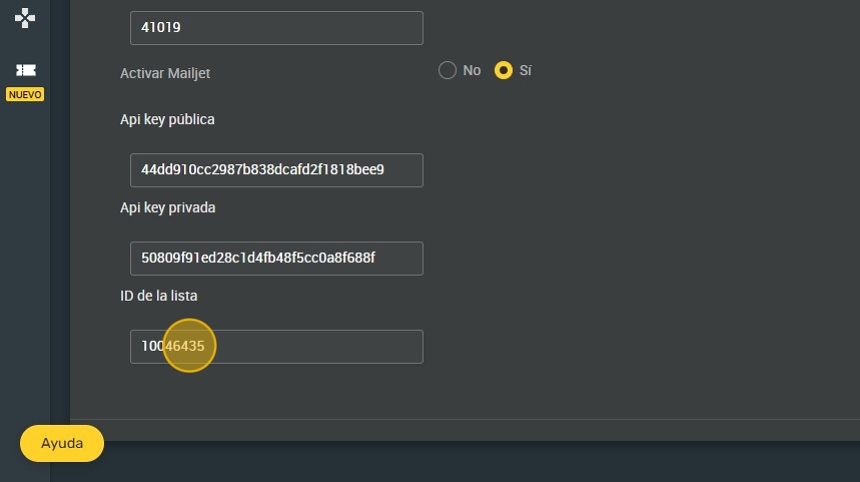
24. Click "Sí" para Activar Mailjet.
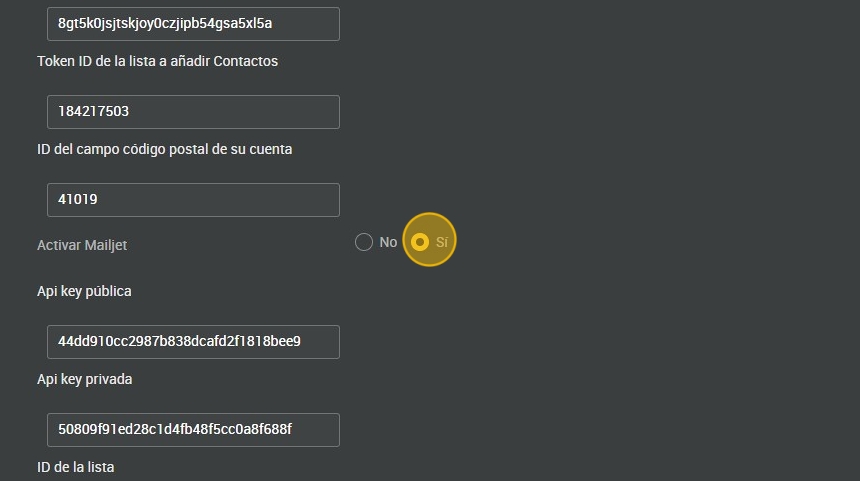
25. Ingrese el api KEY pública.
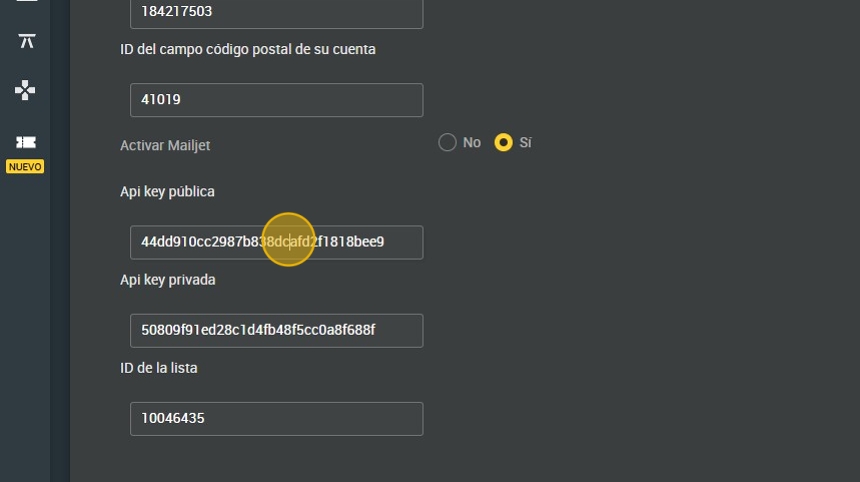
26. Ingrese el api KEY privada.
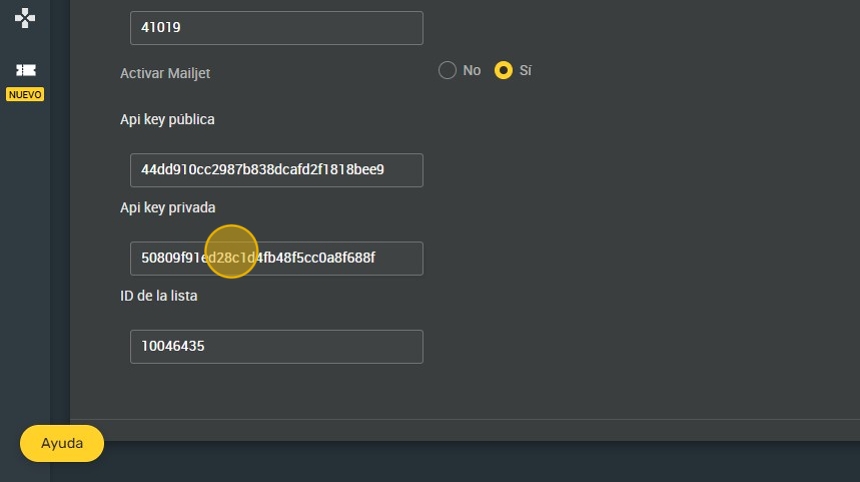
27. Ingrese el ID de la lista.
28. Click "GUARDAR".