
This guide is essential for those who want to implement an effective survey system to collect customer feedback. It provides detailed instructions on how to customize and activate surveys, as well as the option to share experiences on platforms such as TripAdvisor, Google and Facebook. By following these steps, you will be able to obtain valuable feedback to improve the customer experience and optimize your services. In addition, it allows you to customize the messaging and presentation of surve
1. Click on the “user” icon in the top right corner and click on “Settings”.

2. Click “Customer Experience”.

3. Click “Surveys”.

4. Click “yes” to activate the next day survey system.

5. Here you can write the message that appears to the customer to make the request .

6. You can choose to rate these fields between 1 and 5, or between 1 and 10.

7. You can choose whether to show the fields set by default:
-Cooking
-Service
Environment
-Opinion

8. Click on “yes” to have questions carry guidance text for scoring.

9. Click “yes” to send also by SMS.

10. Click “Add question” to write a new question.

11. Here you must add the text that will appear to the customer when the survey arrives.

12. Here you must add a keyword to describe this field.

13. Here you must select the guideline text for marking score.

14. Click “yes” to **offer the customer to share the experience on TripAdvisor.

15. Here you must enter the URL of the TripAdvisor review form.

16. Click “yes” to offer the customer to share the experience on Google.

17. Here you must enter your Google Business Site ID.

18. If you click “yes” to offer the customer to share the experience on Facebook, you must enter the URL of your Facebook page.
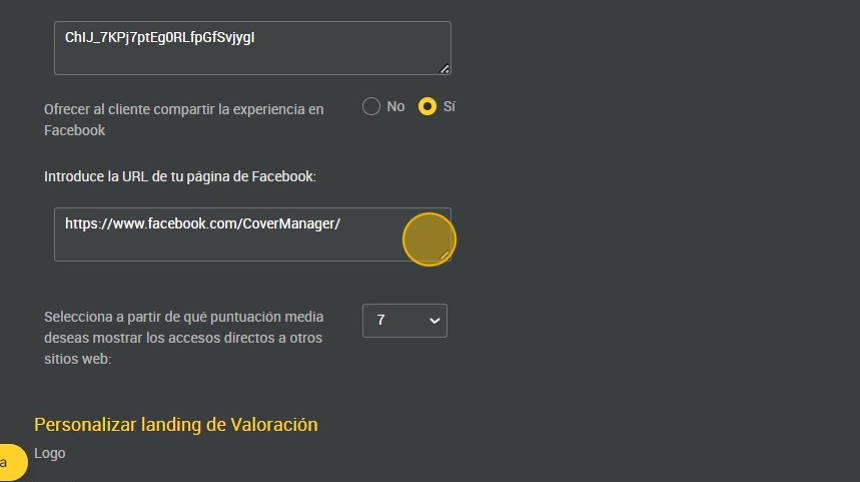
19. Here you must select from which average score you want to display shortcuts to other websites.

20. Here you can choose whether to:
**-Display custom header ** **-Display custom footer
**-Display custom footer.
-Customize introduction message -Customize success message (low rating, neutral rating and high rating) .
-Customize success message (low rating), (neutral rating) and (high rating). -Customize success message (low rating), (neutral rating) and (high rating). ** Click “EDIT” to edit any of them.
Click on “EDIT” to edit any of them.
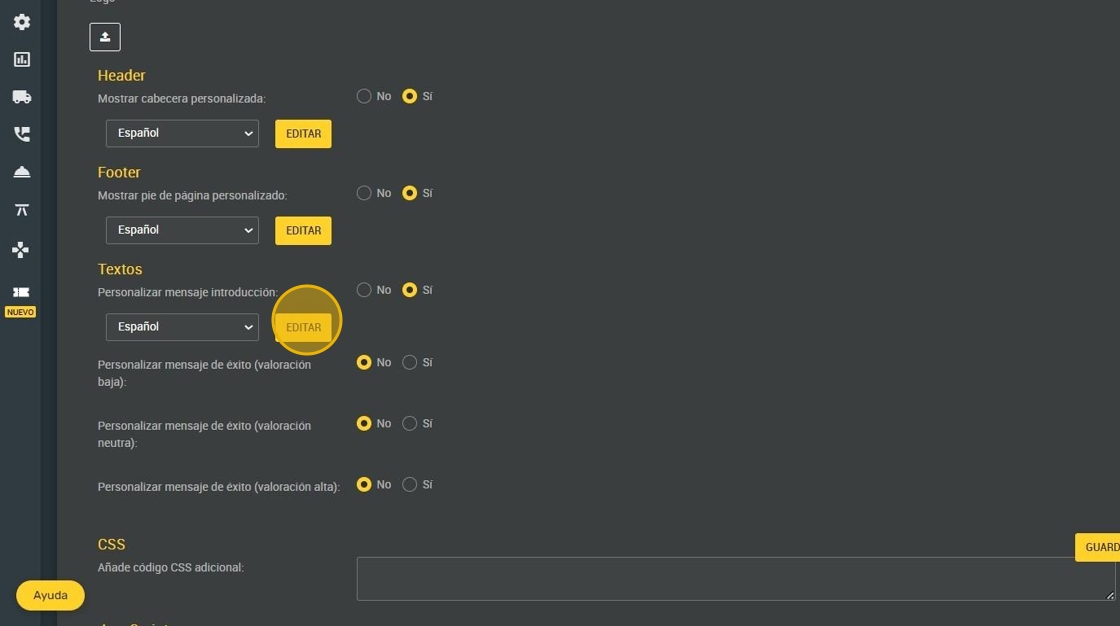
21. Click on the “rating landing page” to open the rating landing page preview.

22. This would be the valuationlanding.

23. Click “SAVE”.
