
This guide provides essential information to personalize the customer experience during bookings, allowing you to tailor the process to your specific needs. By adjusting default settings, customizing questions and ensuring accurate contact information, it improves communication and streamlines operations. The flexibility to create mandatory or optional queries helps manage guest expectations and improves overall service quality.
1. Click on the user drop-down and click on ¨settings¨.

2. Click: “Customer experience”.

3. Click on ¨Diner information¨.

4. You can choose ¨2¨ as the default number of diners when a reservation is made, or you can also display a default text.

5. The default text can be chosen in the language of your choice and you can edit it as you wish.

6. You will go into the question settings to adjust what type of information you will ask the diner to provide that will appear both on the web engine and internally your team will be able to access.

7. You can also request it but it is not obligatory to answer it. Putting “yes” in requesting the data but “no” in obligatory.

8. Click “Ecommerce or promotional code field”. For example, to request the promotional discount code when the customer makes the reservation.

9. Sometimes, to be sure of the contact data, it is good to ask the customer for the phone number and email twice to make sure it is entered correctly.

10. As for the questions, you can create them according to your needs and they will also be specified in the reservation.
Click on this drop-down to see the ones you have already saved. Below, you can learn how to configure a question and ask it according to your needs for the benefit of your reservation management.

11. Click on the ¨**+**¨ button to add it.

12. In the creation of the question, you can select how you want the answer to be. Also the "diner classifier ” option allows the customer to specify how many adults and children are attending, for example.

13. It can also be the menu selection without prior payment, simply as information about the menu to be chosen.

14. With these tips, you can further customize your questions, for example you can choose not to display it in the engine or make it a booking question only.

15. You can include a keyword that appears in a column in the booking information.
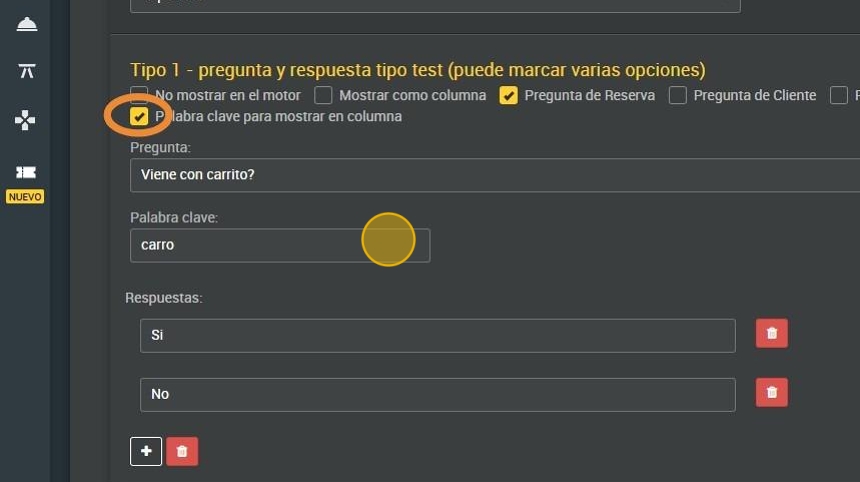
16. To add a question to the dropdown, select the ¨**+**¨ icon.

17. Write down your question, for example, if you are coming with a pet to know which table to place the reservation on.

18. You have the option to make the question you want mandatory, being indispensable to answer it to make the reservation.

19. Click “Save”.
