This guide offers a comprehensive approach to improving the customer experience through an effective waitlisting system, especially for restaurants. It provides practical steps to customize the waitlist based on real-time availability and customer preferences, ensuring a seamless booking process. Using features such as SMS notifications and QR codes for sign-ups, businesses can improve customer satisfaction.
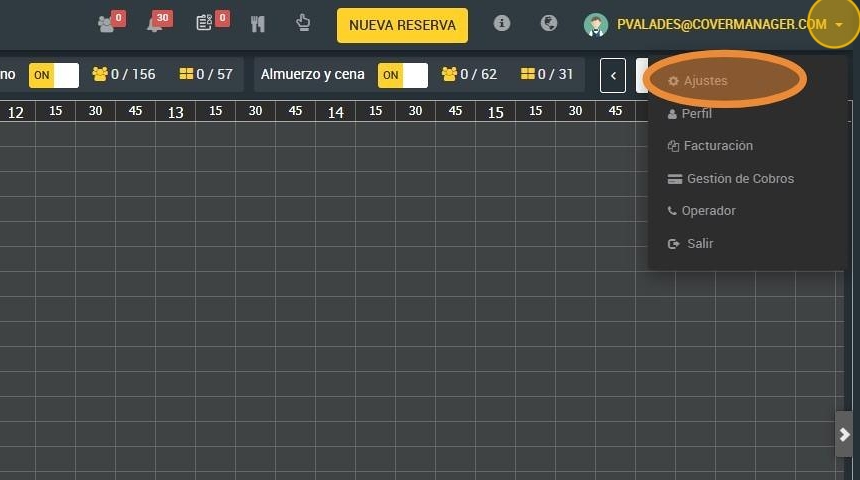
1. Click on your profile drop-down and go to the settings section.
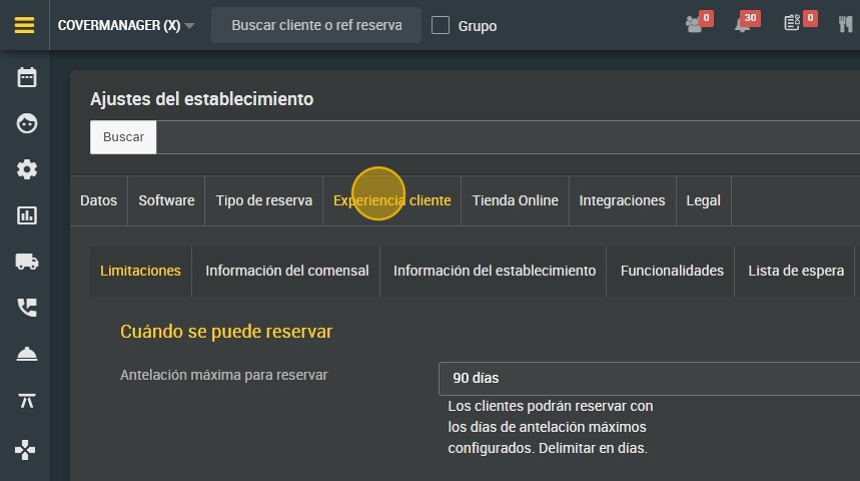
2. Click on “Customer experience”.
3. Click "Waiting list".
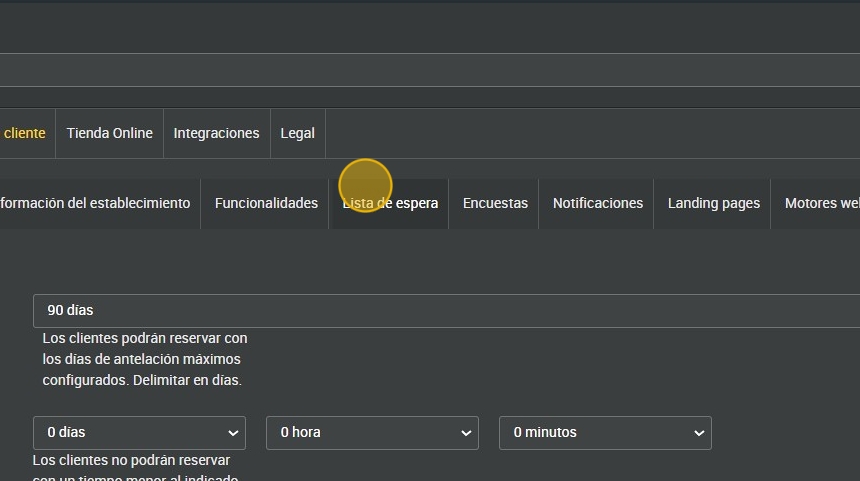
4. You can activate the waiting list in this drop-down menu.
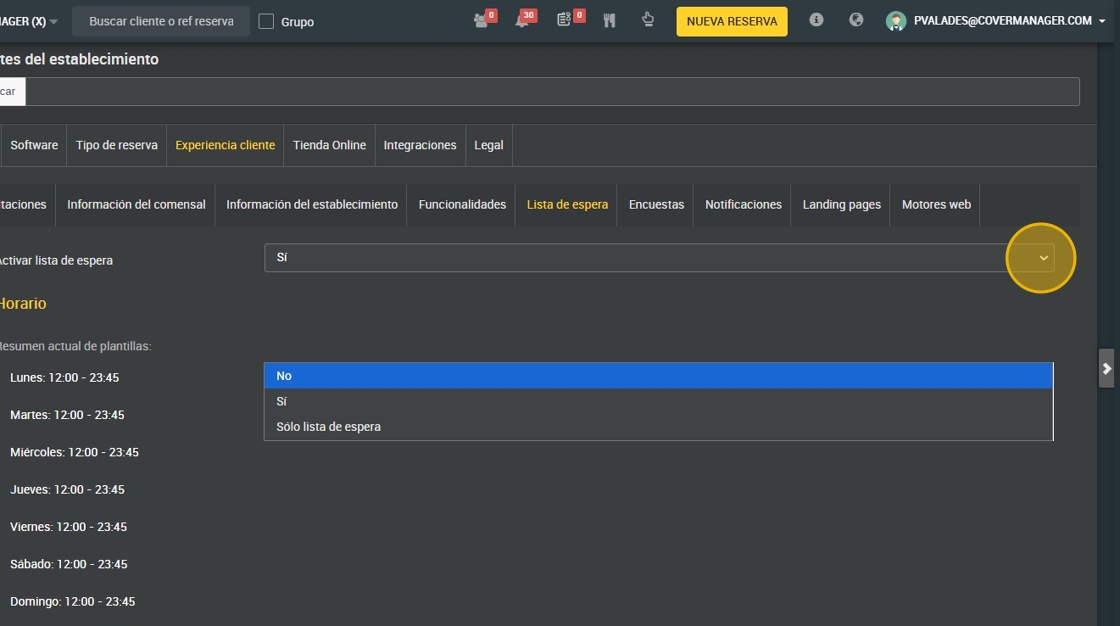
5. Select the schedule and days where you would like to apply this waiting list.
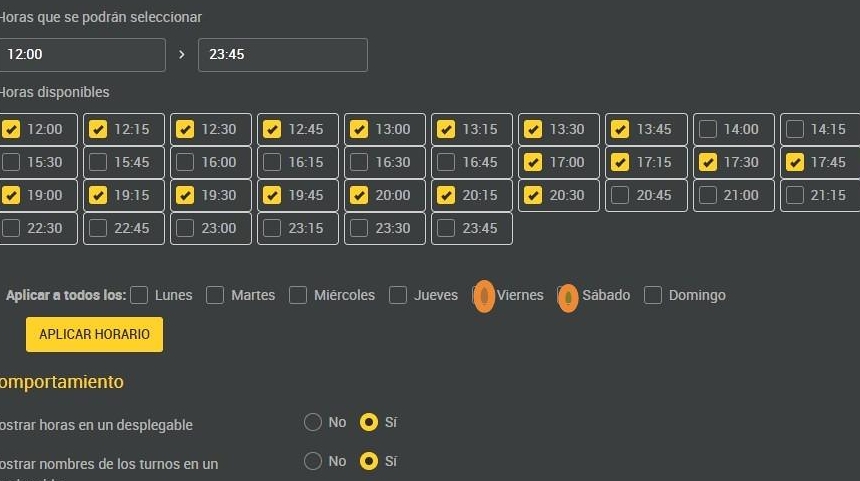
6. After applying the schedule, you can choose from several options to make the waiting list to your liking and make it work as well as possible.
This waiting list can show the hours in a drop-down or the names of the shifts to choose from. You can also offer the customer to choose the zone if you consider it.
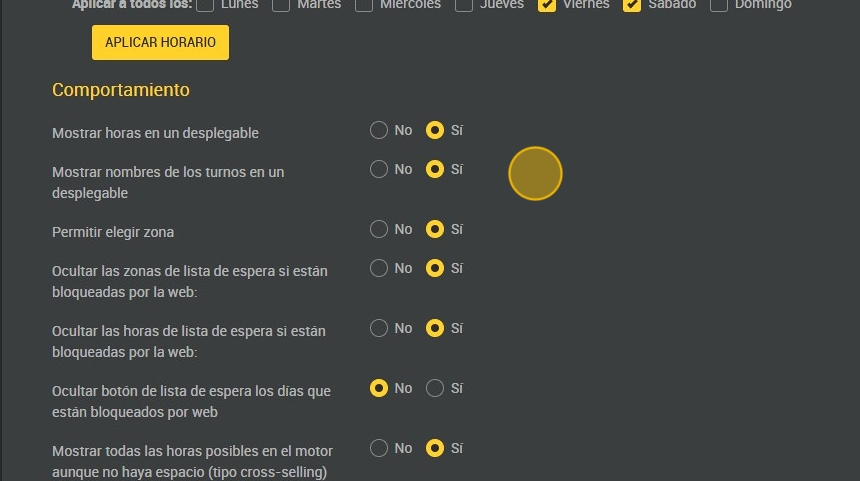
7. You also have options to hide certain variables if you want to simplify your booking view, for example you can hide the waiting list areas if they are already blocked by the web or only the days that are blocked by the web.
You can even put a limit on the number of people on the waiting list per engine per shift.
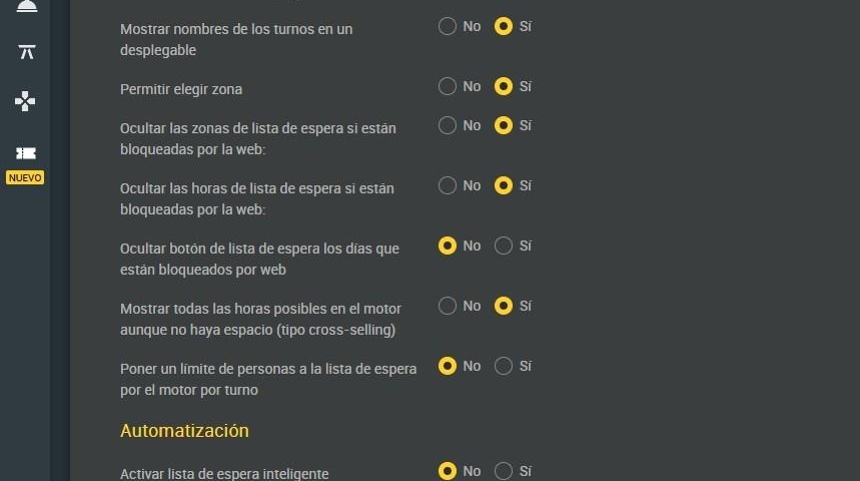
8. To activate the intelligent waiting list, press “yes”.
The WAITING LIST will automatically pick up the users you configure.
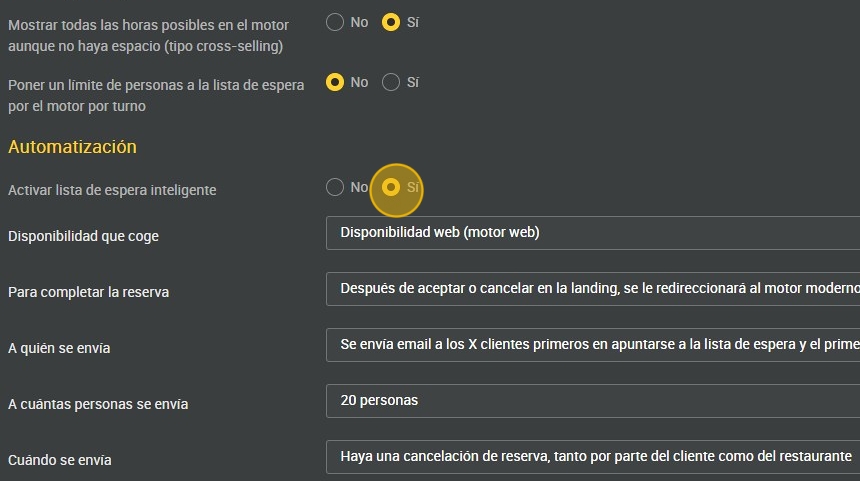
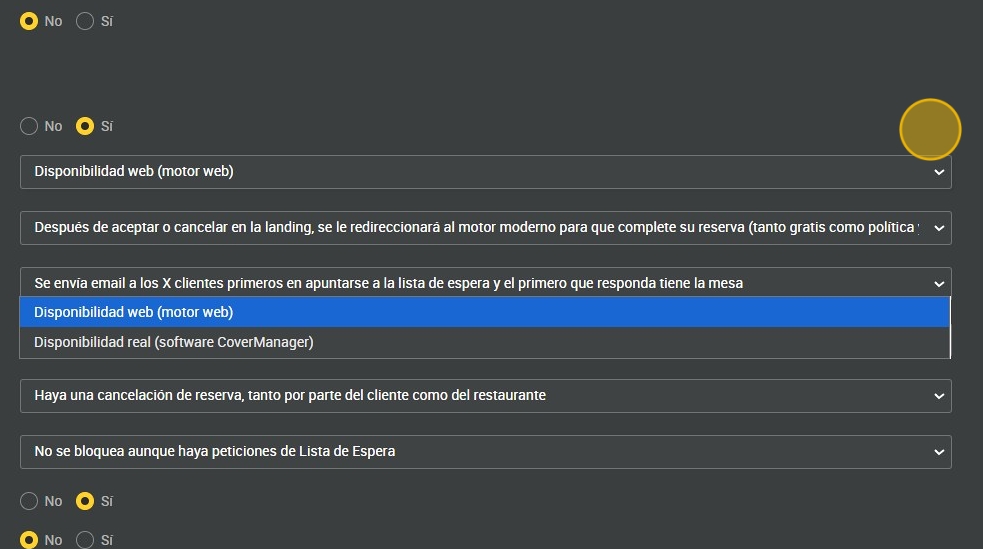
9. In the first drop-down you can choose whether you want to give the waiting list the real availability or the web engine availability.
To explain this it is best to give an example:
-
Your restaurant has the maximum capacity of 30 people.
-
You have now occupied the capacity with 28 people.
-
You have then 2 options which are the ones in the drop down:
1. The waiting list will be filled with the web engine, it will only let you reserve a table of 2 since your set quota is 30.
2. As the actual availability is the one on the restaurant floor plan, if there is a table of 2-4 people you will have it occupied although that may mean two more diners.
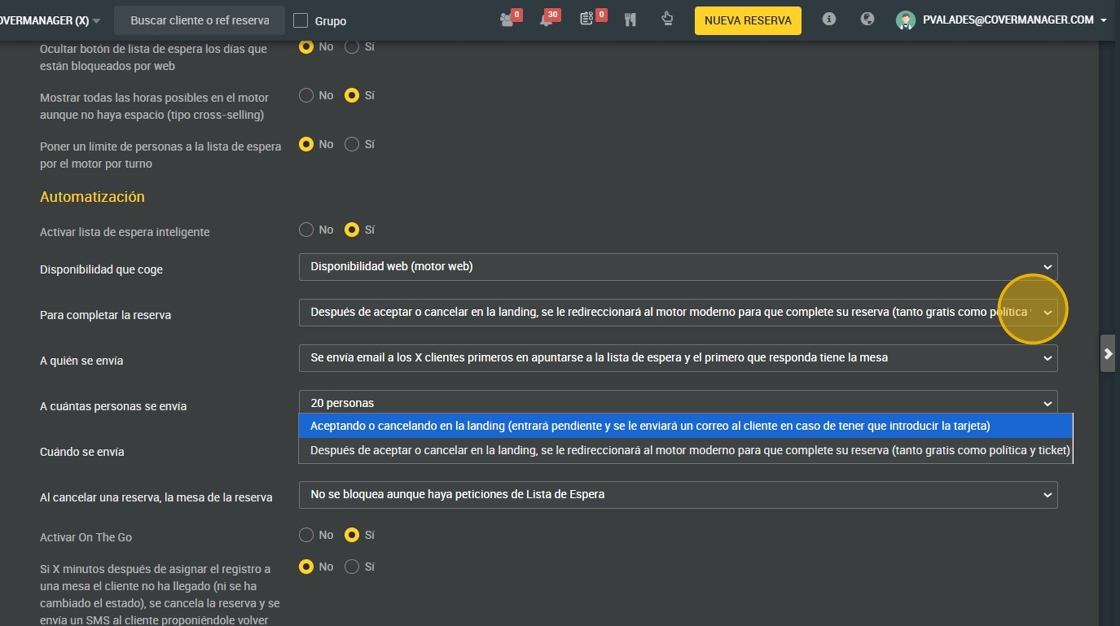
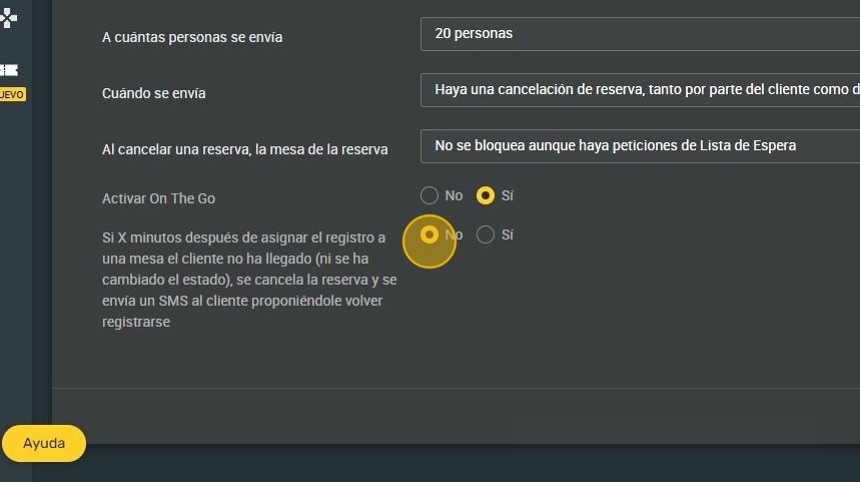
10. You can choose the number of people to whom this waiting list message is sent.
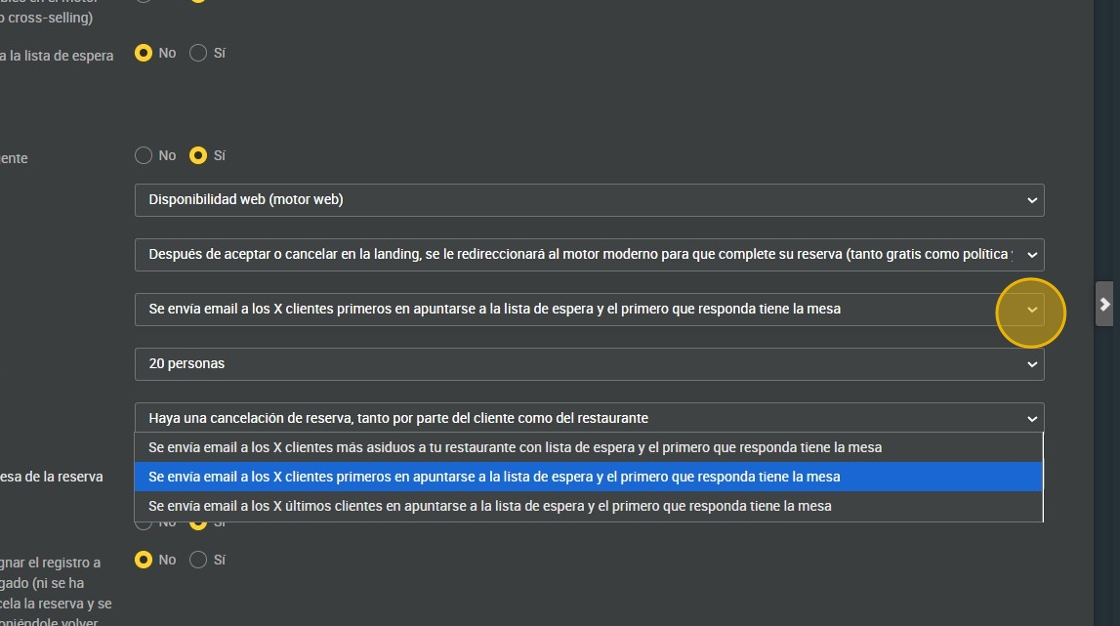
11. To whom do you prefer to send the reservation availability mail first?
To your regular customers, to the first ones who signed up or to the most recent ones.
12. How many people is this mail sent to?
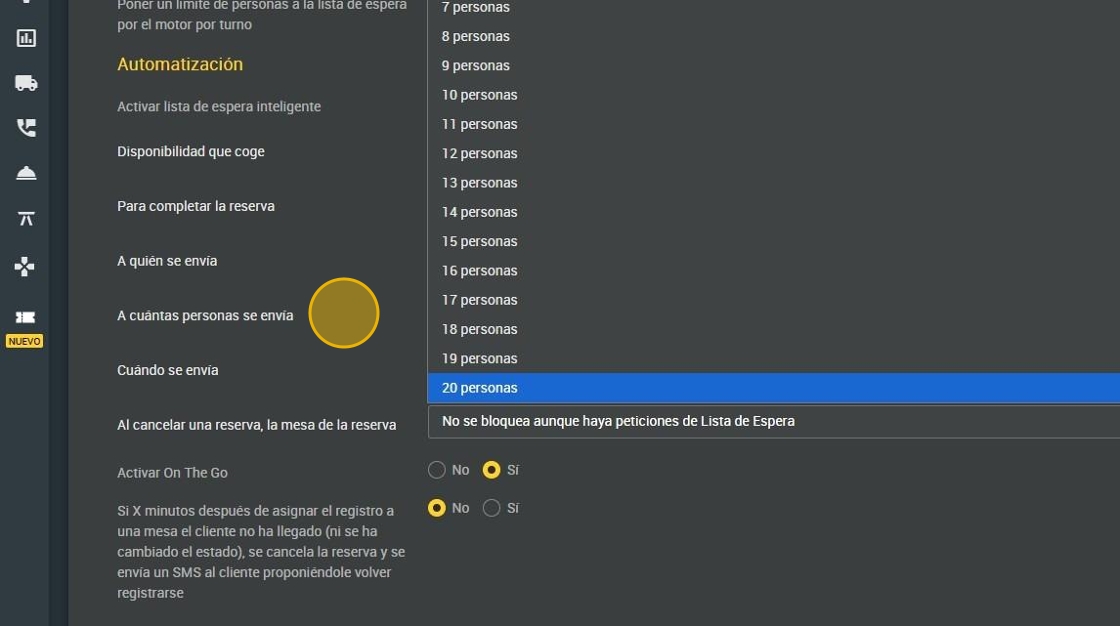
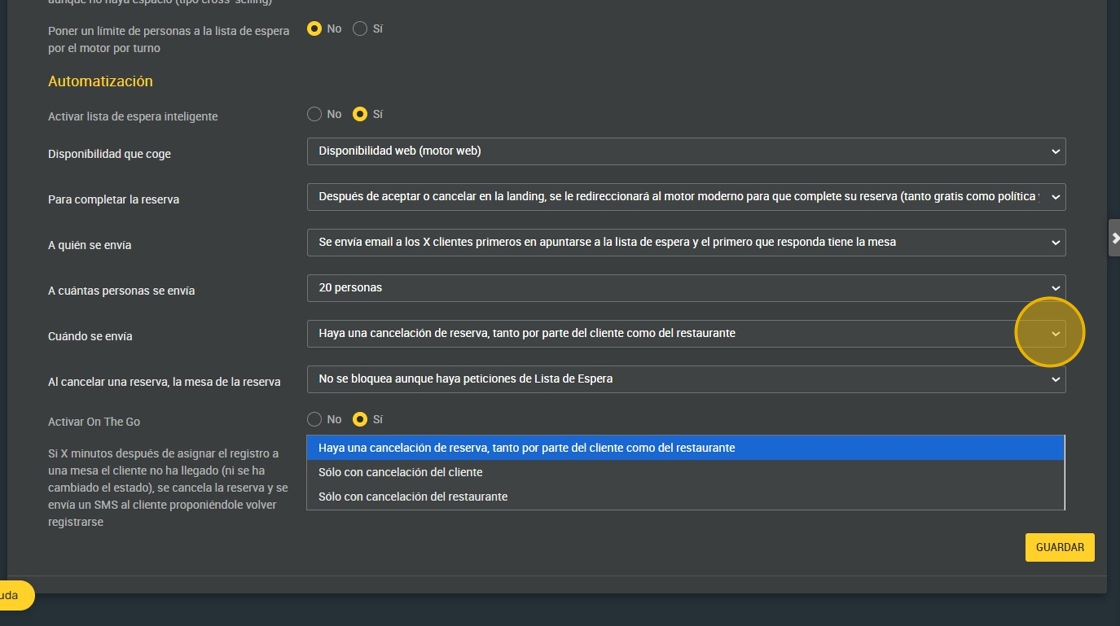
13. Here you can choose when it is sent, having the possibility to be canceled by both the customer and the restaurant or only the customer or only the restaurant.
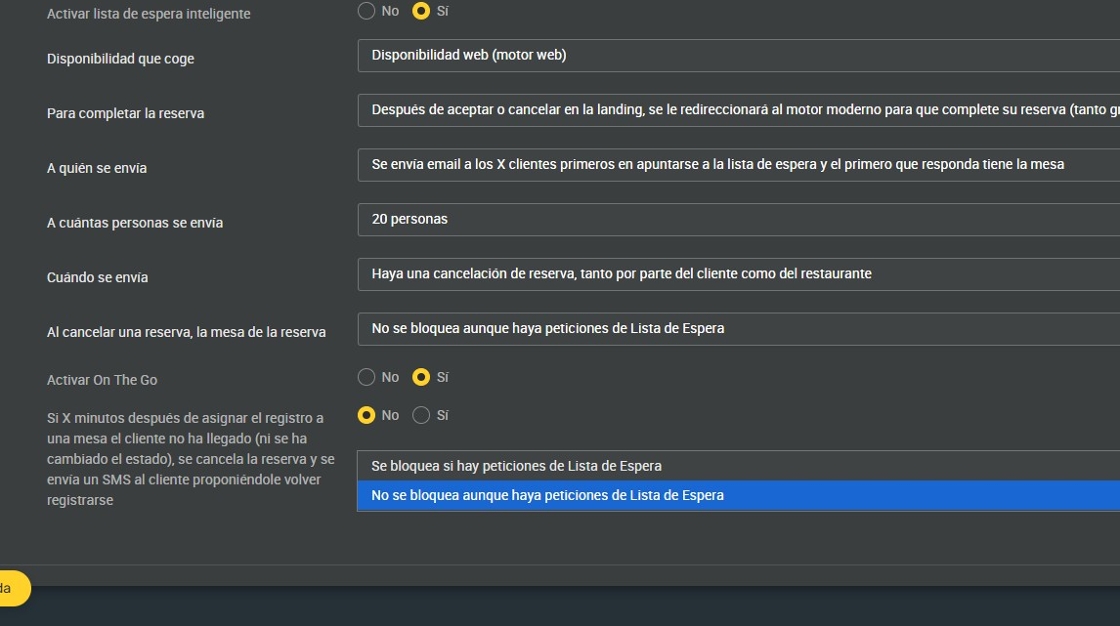
14. You can choose whether the table is blocked if there are requests or whether the table is open to everyone and the first one to grab it gets the booking.
15. So that customers have the possibility to wait for a while or take a walk and be notified by SMS when the table is ready. Or you can also put a QR so that they can sign up to the waiting list and be assigned.
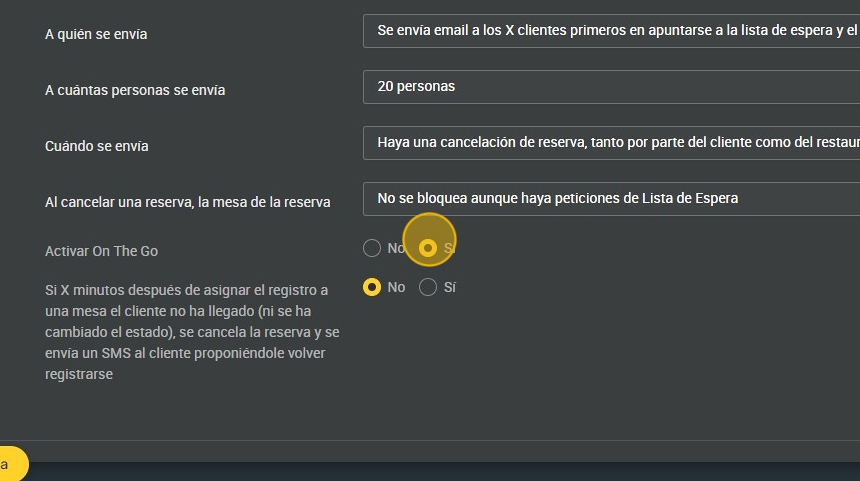
16. For example, the restaurant sends an SMS notifying of the availability of the table and the customer does not respond. After 5 minutes, the On The GO is cancelled and the table goes to someone else.
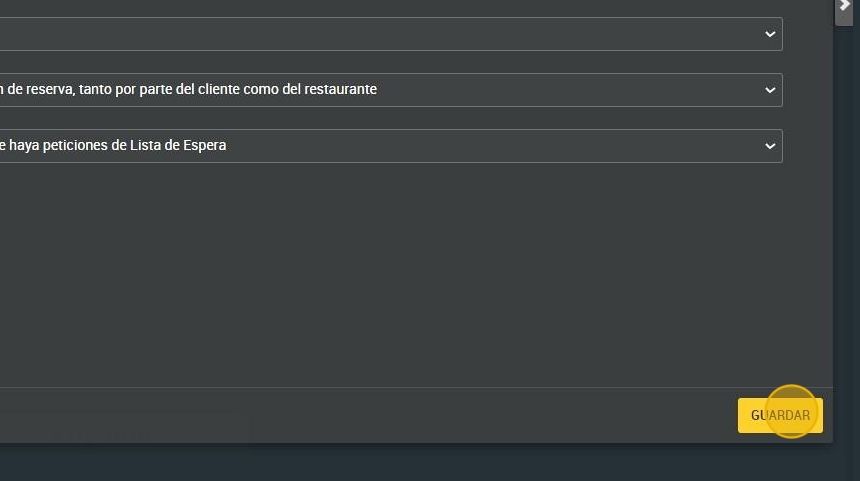
17. Click "SAVE".