
⚠️ IMPORTANT, to create users in a restaurant license, you must have Administrator or SuperAdmin role in that restaurant.
In this article we will discuss how to add users to a restaurant in CoverManager.
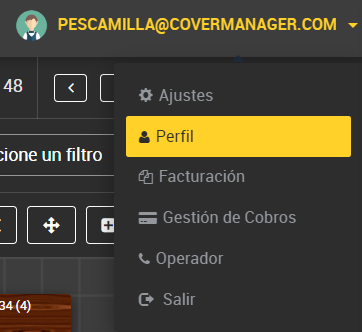
1. While logged into CoverManager, go to “Profile” at the top right of the interface.
2. Once you are inside the “Profile” screen, you can add the user's data in the “Add new user” section.

☑️
- The user name must be lowercase and without spaces or special characters.
- The password must be secure. Use unique and complex passwords for each account: combine upper and lower case letters, numbers and symbols. Never reuse passwords, and consider using a password manager to manage them securely. Change your passwords regularly and avoid using personal information that is easy to guess.
- You can choose between different roles, depending on the permissions the user will have. It is best to match their role to their responsibilities or position in the facility.
- Fill in the email field with the employee's personal email or your personal company email, this email will be the one used to send the password recovery email if you forget it.
- The telephone field is optional.
3. Once you have filled in all the fields click on the “ADD USER” button and the new user will be created. The user will appear at the bottom of the user table.
