
⚠️ This article is about changing your password from within CoverManager as a logged in user, if you have forgotten your password and cannot access, follow the steps described here.
In this article we will discuss how to change the password of your user in case you want to make it more secure or modify it for another one that you remember better, to do this follow the steps below:
1. While logged into CoverManager, go to “Profile” at the top right of the interface.
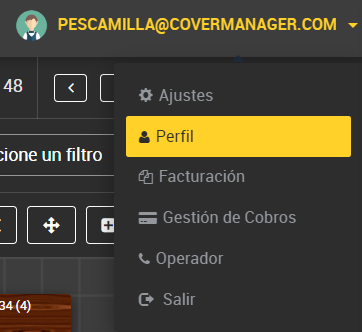
2. Once you are inside the “Profile” screen, you can type the new password you want for your user in the upper left corner.

Click on change password and the change will be made, the next time you log in to CoverManager you will have to use the new password you have defined.
☑️ Use unique and complex passwords for each account: combine upper and lower case letters, numbers and symbols. Never reuse passwords, and consider using a password manager to manage them securely. Change your passwords regularly and avoid using personal information that is easy to guess.