
This guide provides essential information on how to customize the software's tracking settings, enabling users to effectively monitor and evaluate their operations. By following these steps, you can enhance security through password requirements and maintain a clear record of who edits reservations, ensuring accountability and streamlined management.
Tip! We call tracking the tracking and monitoring of movements to measure the efficiency and be aware of how it evolves, who changes it...
1. Click “Settings”

2. Click “Software”.

3. Click "Tracking"

Tip! There are two options: Request password each time these options are made or ask for the mandatory ¨annotated by¨.
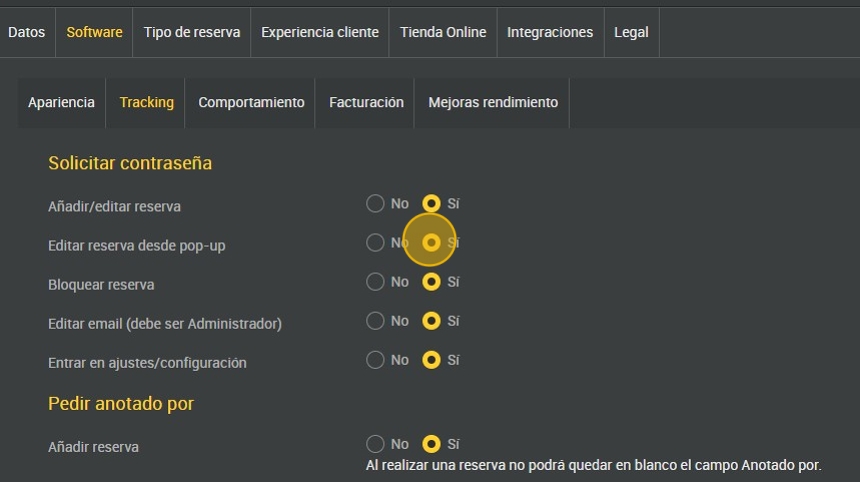
4. To modulate at what moment to ask for the key, select yes or no according to your preference. For example, signaled asks for the key at the moment you click on the pop-up..
For example, the signal asks for the password at the moment you click on the pop-up..

5. Let's do a test: Click on ¨yes¨ to activate the option to ask for a password to edit a reservation from the pop-up.
6. To test, click on the ¨pop-up¨, the button that is signaled.

7. When you click on ¨validate¨ it will ask for the password.

8. It will ask for the password of the user who has edited any of the reservation data.

9. The other option is to ask for ¨annotated by¨ mandatory to have a record of **who points to each reservation.

10. To save walk-ins in the database, click YES on “allow to add name, email and phone number” so that you can save them in your database and they will be compulsorily entered.
