
This guide provides detailed instructions on how to customize the appearance of the Covermanager software, allowing users to adjust visual and booking configurations according to their preferences. In addition, display options in different formats and colors make it easy to use in a variety of environments, such as brightly lit areas. In short, this guide is essential for those looking to maximize the functionality and adaptability of the software to their specific needs.
1. Click on “Settings”.

2. Click on "software".

3. Click “Appearance” to select your preferences.
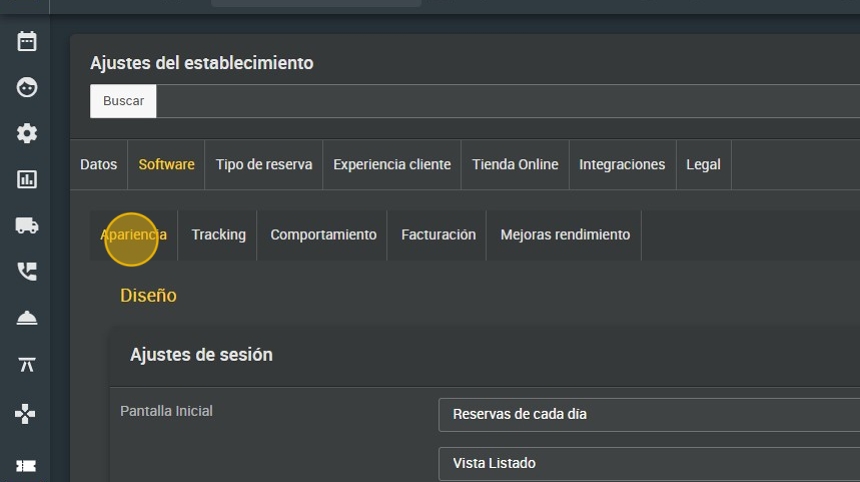
4. To choose which screen is displayed first when opening Covermanager, open this drop-down and select.

5. This would be the view of the month.

6. In day view you can also configure which data is displayed:
7. In¨list view¨ you will be able to choose how the view will be inside the day reserves, that is to say, if you prefer to see them in a list with name or in a quadrant.

8. If you choose the list, you can choose it according to time or in general.

9. You can also choose the bookings to be displayed in this view.

10. The “dynamic view” option offers a grid where you can optimize your bookings and day view.

11. This is how the dynamic view will be displayed , every 15 minutes and depending on how much the booking is occupied.

12. Click on save to set preferences.

13. The next steps that you can edit the appearance of the screen can be:

14. Black version or white version, the black version has the interface of the colors you are normally seeing in Covermanager.

15. This would be the view in the white version. This version is recommended for terrace areas where there is a lot of light.

16. You can change the format in which the date appears and even the day on which the week would start.

17. In the booking flashing settings:
A. ¨Past the duration time¨: if the booking is at 14:00h and has to last 2 hours, at 16:00 this table will start to blink to indicate that you have to get up soon as it is passing the booking time.
B. 0-15 mins: before the booking, it will blink indicating that they will arrive soon.
C.15-30 mins: if the booking is running late, it will start flashing 15 minutes after the start time. It will be from 15 minutes to 30 minutes. It is a warning to notify the customer or to know that the table is still reserved, also to place the no-show. If the customer arrives, the table will stop blinking when the customer sits down.

18. These are the different booking buttons, they appear both in the booking and in the table view.

19. You can create your own booking statuses, add up to 6 different colors and they will appear as options in the stipulated booking status box.

20. Click on this drop-down to add the new status you want.
21. Finally, the configuration of buttons and alerts that will appear in the bell icon on the top bar. Choose what you need to be notified.

22. The categories you have chosen will appear here.
