
This guide provides a comprehensive overview of how to manage prepaid product bookings, making it essential for anyone involved in restaurant booking systems. It outlines the step-by-step process of creating, editing and deleting products, ensuring that users can effectively manage a variety of pricing structures and descriptions.
Watch videotutorial
Tip: Bookings made with the Ticket type are associated with a payment by the customer that is made at the time of booking. This payment can be partial or total for the amount of the bill at the restaurant.
1. Click on the “user” icon in the upper right corner and click on “Settings”.
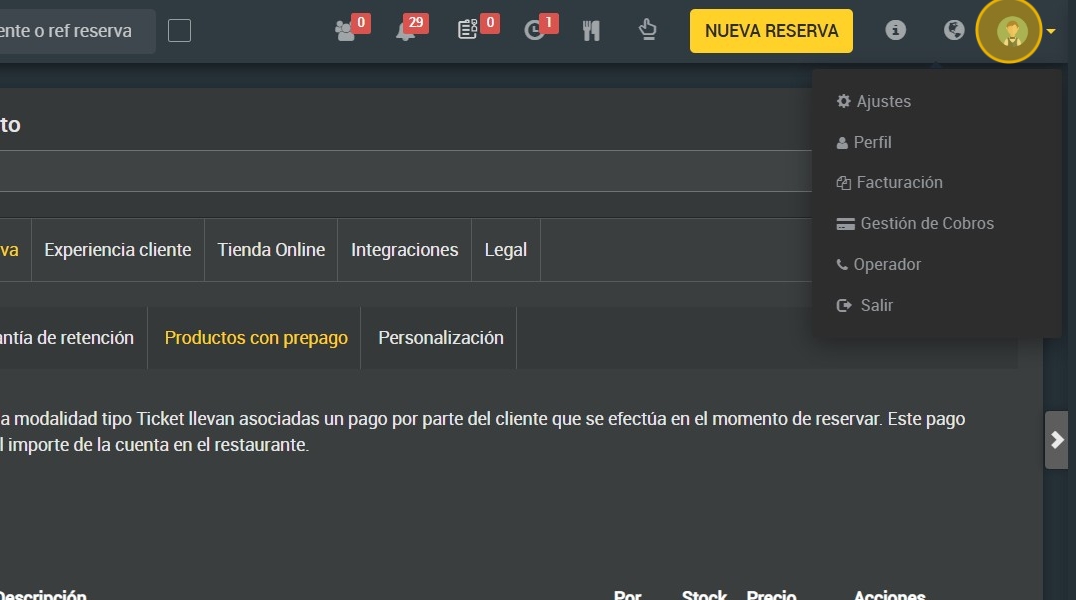
2. Click "Booking type".

3. Click "Prepaid products". All products will appear here.

Tip: If you want to create a new product:
4. Click "NEW PRODUCT".

5. Write the name of the product.

6. Select the type.

7. Select the language.

8. You can choose between price per person or per booking.

9. Write the price.

10. Specifies the tax to be applied to the product.

11. You can write a description if you wish.

12. Finally, click on “add”.

Tip: If you want to edit a product:
13. Click on “Edit”, located to the right of the product.

14. Once you have edited it, click on “UPDATE”.

Tip: If you want to delete a product:
Alert: NOT ALL PRODUCTS CAN BE DELETED, IF A PRODUCT HAS BEEN APPLIED IN “5. RESERVATION CONDITIONS” AT SOME POINT, IT WILL NOT LET YOU DELETE IT WHILE IT IS IN USE.
15. Click on “REMOVE”.

16. Click "YES".

17. Finally, click on “SAVE”.

Tip: If you want to make a ticket type reservation with the prepaid product configured:
18. Click "NEW BOOKING"

19. Completa los datos del cliente

20. Select “Ticket” reservation type .

21. Click on the card icon that appears in the type of reservation.

22. Select the desired product.

23. Select the number of people.

24. After verifying that the price and quantity are correct, click on add product.

25. Click on "BOOK AND REQUEST CARD ”.

26. Once the customer has made the payment, the reservation will change color from orange (pending confirmation) to green (confirmed) .
