
This guide provides a clear step-by-step guide to setting up a restaurant's schedule, allowing managers to customize opening and closing shifts according to their needs. With flexible options to apply changes on specific days or between specific dates, it makes it easy to adapt the schedule to the operations of the location. In addition, it includes simple opening and closing instructions, which optimizes time management and enhances the customer experience.
1. Click "Configuration".

2. Click "Bookings".

3. Click on one of the day shifts of your choice.

4. This is the reservation configuration screen, in the highlighted button you can OPEN OR CLOSE the restaurant.

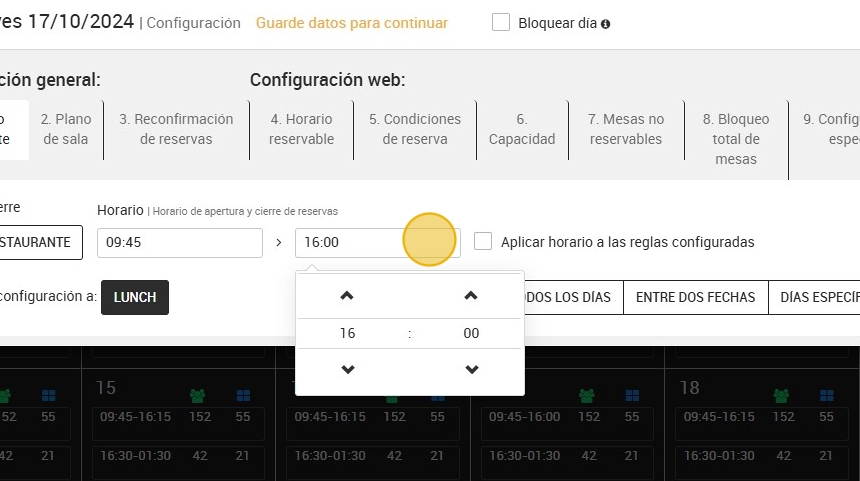
5. Here you can set the desired opening and closing hours of the restaurant.

6. Select the closing time.
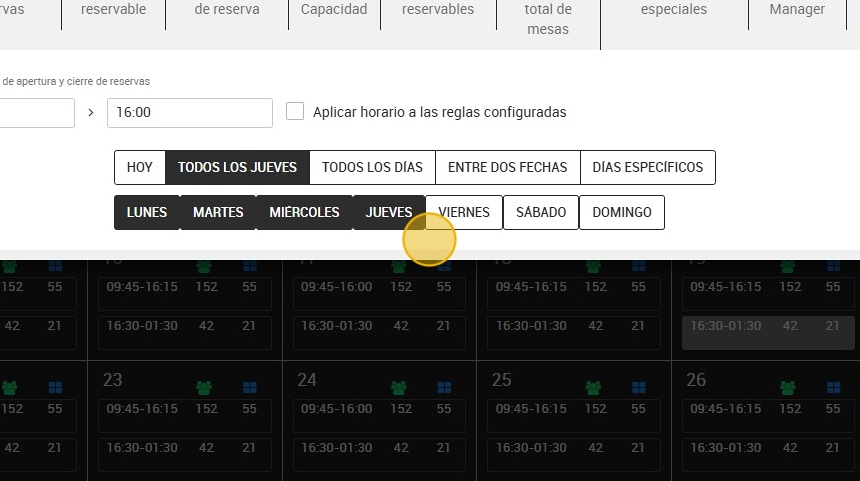
7. To apply the configured schedule to the days you prefer, you have several options to adapt it as much as possible to your taste. These are the options:
A. The same day (today).
B. "Every Wednesday¨: here you can select one or more days of the week where you want to apply the configuration. For example; Tuesday, Thursday and Friday.
C. "Every day”.
D. Between two dates: for example the configuration is from November 22nd to December 22nd.
E. Specific days.

8. For example, by clicking on “every Thursday” you can modify your schedule to apply to specific days of the week.

9. For example, if you want to have a different schedule on weekdays than on weekends, click on these four days.
10. If for example you want to set it between two dates, this drop-down will appear for you to choose from which day to which day you want to apply the changes.

11. Click on “SPECIFIC DAYS” to choose some specific dates where to apply the configuration.

12. This calendar will appear where you have to select those specific days where you want to activate a different schedule or close the restaurant.

13. To save the settings, click on “Apply”.
