This guide provides a comprehensive, step-by-step approach to setting up non-bookable tables on the web within a restaurant management system, allowing users to effectively manage reservation availability. It provides flexibility to select specific days, times and zones to block bookings, adapting to various needs such as special events or operational changes.
1. Click on the configuration icon.

2. Click "Bookings".

3. Click on the day and time you wish to apply the settings.

4. Click "7. Non-Bookable Tables".

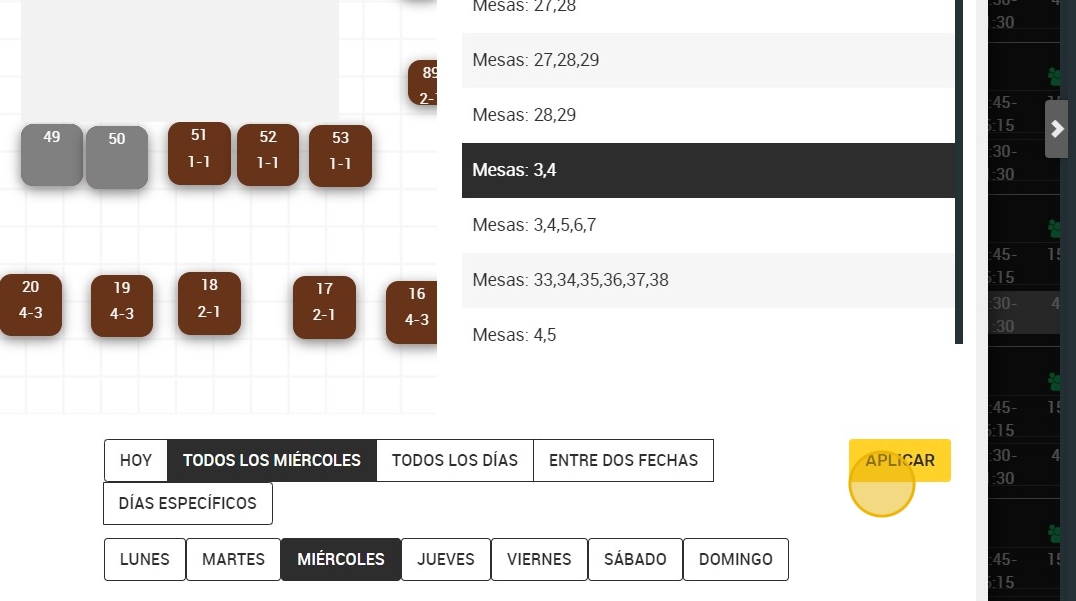
5. You can select the zone or zones you wish to block in order not to receive bookings in them through the web.

6. You can also select specific tables for which you do not wish to receive reservations through the web.

7. You can choose to apply this setting to Lunch or Lunch and Dinner.

8. You can also choose between different time variables to set the table/zone blocking:
A. Same day (today).
B.¨Every Wednesday¨: here you can select one or more days of the week where you want to apply the setting. For example; Tuesday, Thursday and Friday.
C. "Every day”.
D. Between two dates: for example the configuration is from November 22nd to December 22nd.
E. Specific days.

9. Click "APPLY".