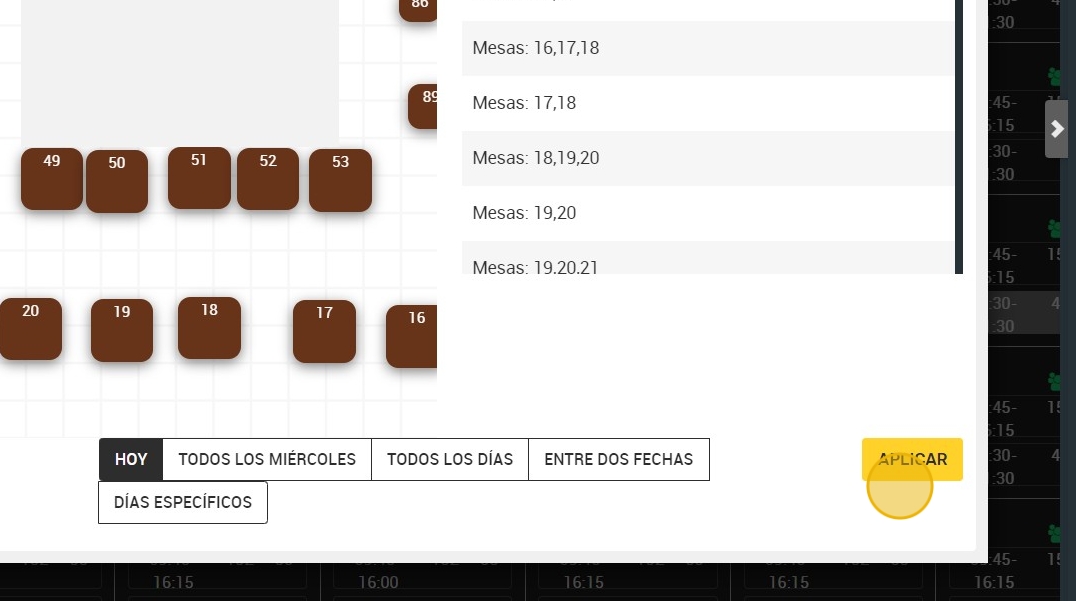
This guide is essential for those who wish to efficiently manage the room plan in their bookings. It provides step-by-step instructions on how to select and apply different room plan configurations according to day and time, making it easier to organize events. In addition, it offers flexibility by allowing configurations to be applied for specific days or date ranges. By following this guide, users can optimize the use of their space and enhance their customers' experience.
1. Click on the configuration icon.
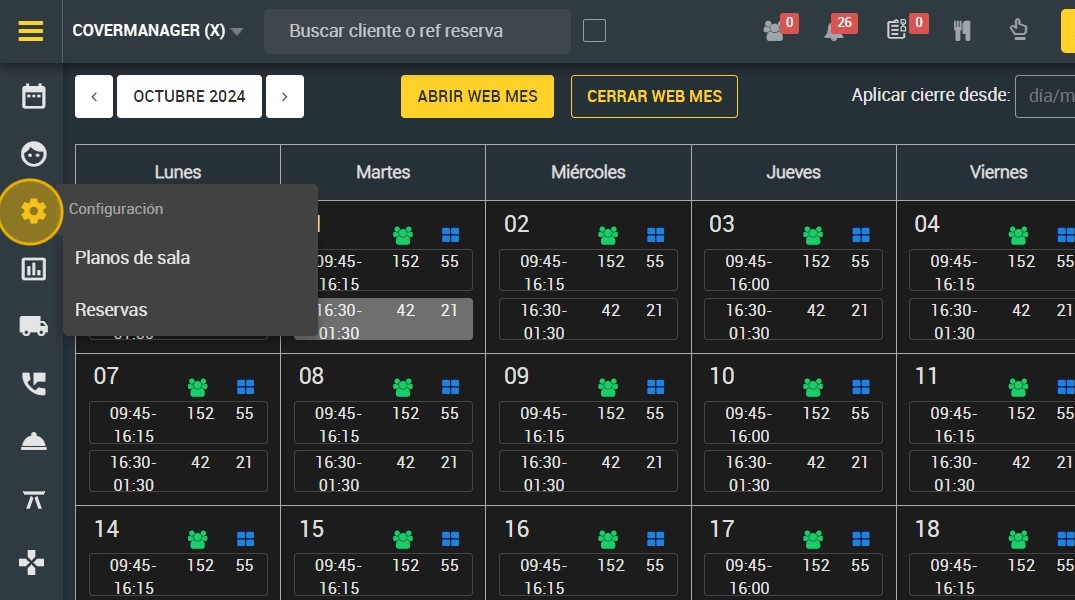
2. Click "Bookings".

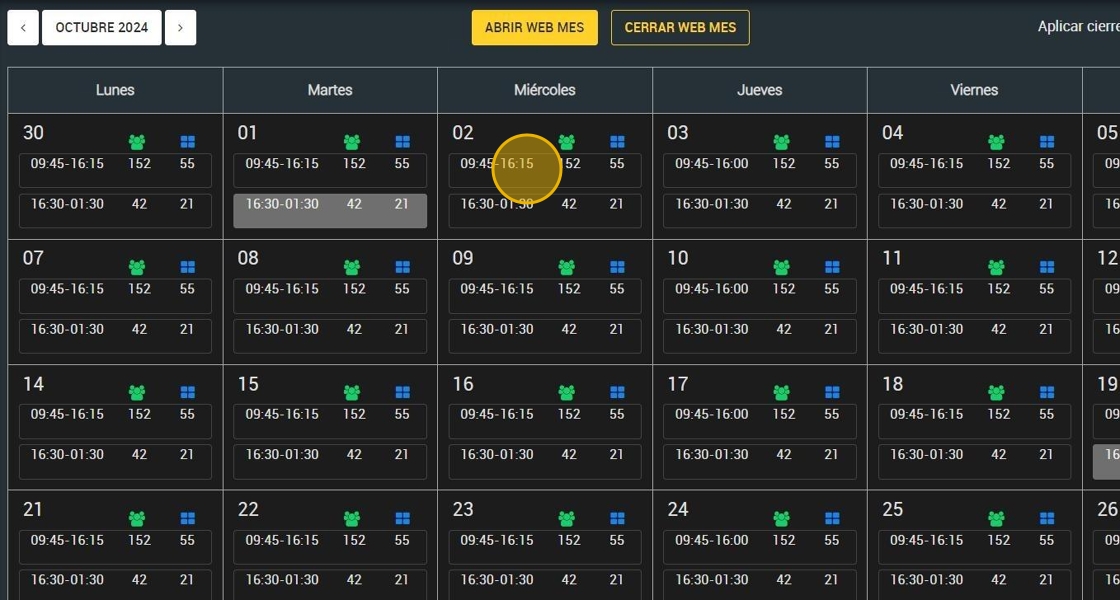
3. Click on the day and time you wish to apply the settings.
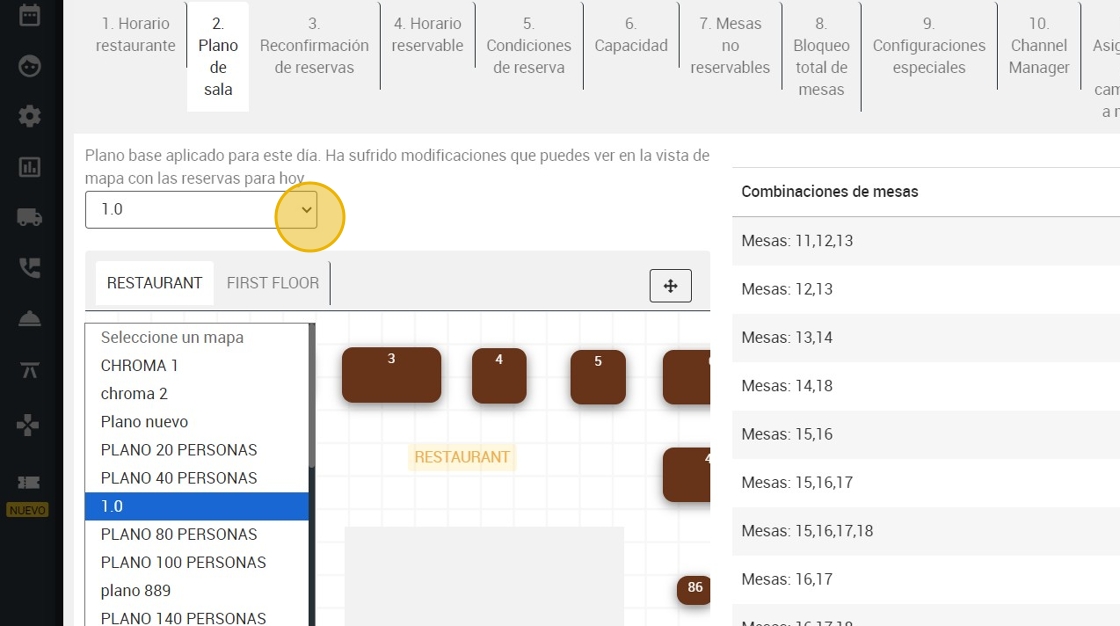
4. Click "2. Floor plan".

5. Here you can choose the room plan you want to apply.
6. You can choose to apply the room plan to Lunch or Lunch and Dinner.

7. You can also choose between different time variables to set the room plan:
A. Same day (today).
B.¨Every Wednesday¨: here you can select one or more days of the week where you want to apply the setting. For example; Tuesday, Thursday and Friday.
C. "Every day”.
D. Between two dates: for example the configuration is from November 22nd to December 22nd.
E. Specific days.

8. Click "APPLY".