
This guide is essential for setting up your restaurant's bookable schedule effectively through the web platform. It provides clear instructions on how to adjust schedules according to your daily, weekly or date-specific preferences, allowing for better booking management. In addition, by learning how to turn the web engine on and off, you will be able to optimize incoming bookings based on demand and peak days.
1. Click "configuration".
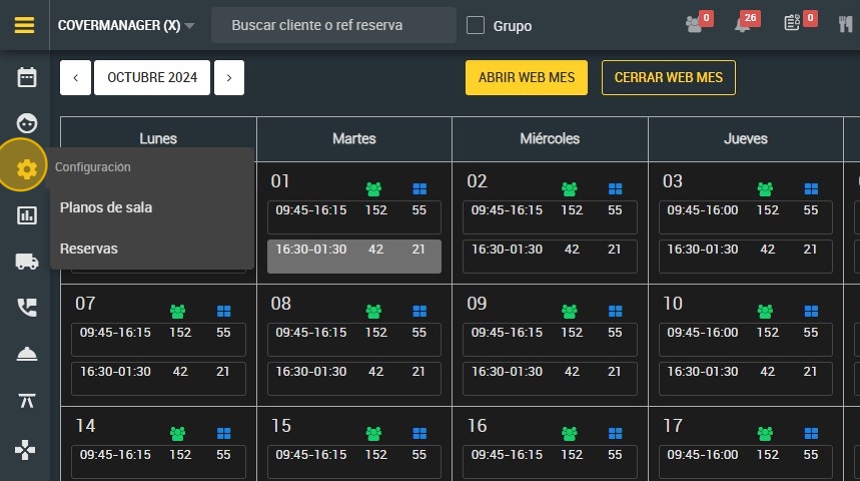
2. Click "Bookings".

3. Select day and shift to be configured.
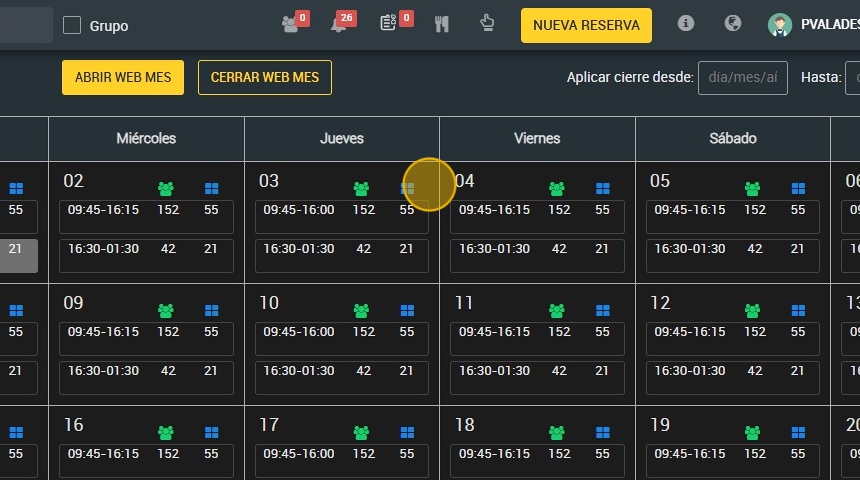
Alert: It is important to note that we are in the configuration of the web engine. That is to say, the configuration that we establish will have to do with the entry of bookings through the web channels.
4.

5. Click "4. Booking hours".

6. You can turn the web engine on or off according to your preferences,

7. This is the bookable schedule screen with the web engine active. Select the hours you want to activate it, click on the checks you want.
Keep in mind that this depends on point 1. Restaurant schedule, if you want to learn how to configure it. Click here.
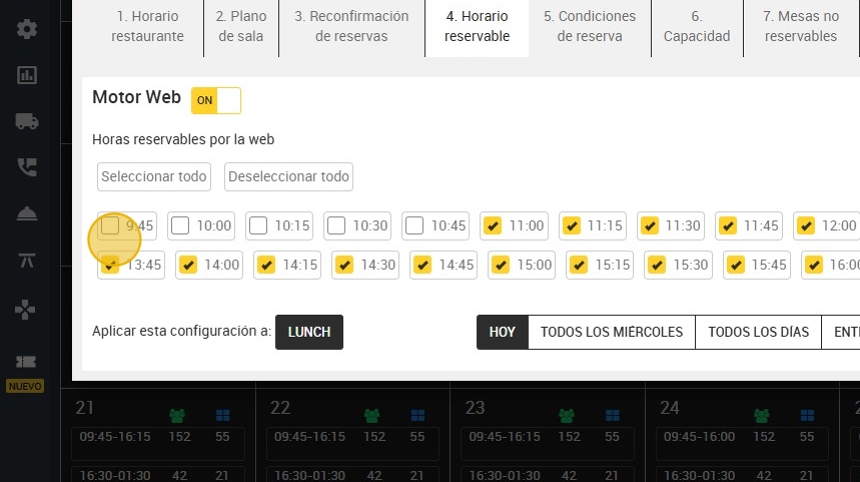
8. You have several application options according to your preferences:
A. Same day (today).
B. ¨Every Wednesday¨: here you can select one or more days of the week where you want to apply the settings. For example; Tuesday, Thursday and Friday.
C. "Every day”.
D. Between two dates: for example the configuration is from November 22nd to December 22nd.
E. Specific days.

9. Click “EVERY WEDNESDAY”.
By clicking on “EVERY WEDNESDAY” you will be able to modify your schedule to apply to specific days of the week.

10. For example, if you want to have a different web booking schedule on weekends than on weekdays, click on these four days.

11. If for example you want to set it between two dates, this drop-down will appear for you to choose from which day to which day you want to apply the changes.

12. Click on “SPECIFIC DAYS” to choose some specific dates where to apply the configuration.

13. This calendar will appear where you have to select those specific days where you want to activate a different schedule or close the restaurant.

14. To save the settings, click on “Apply”.
