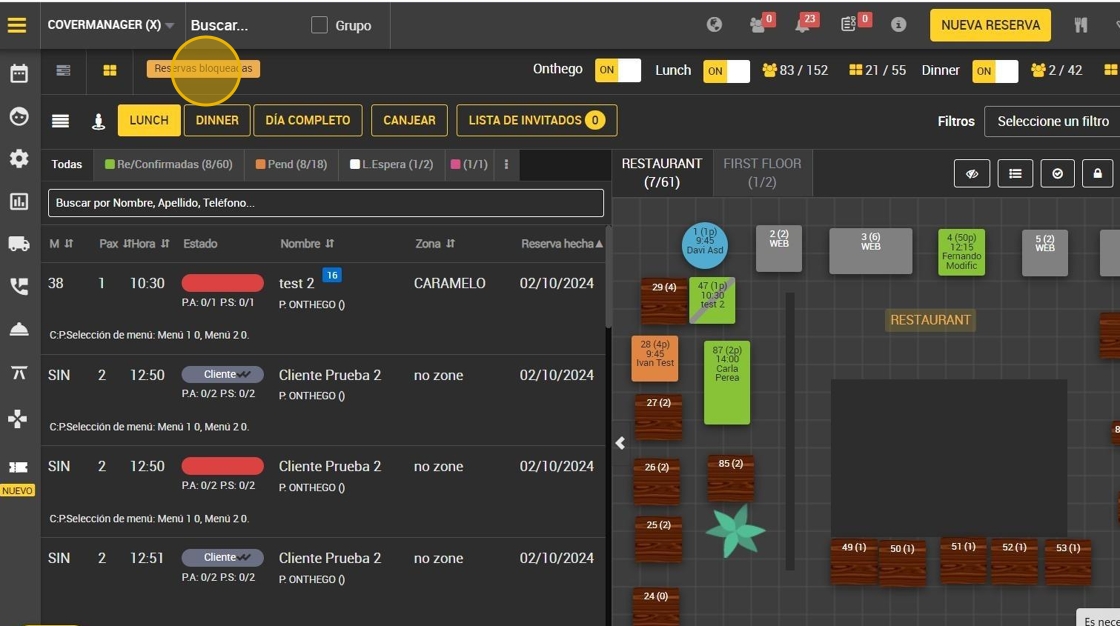
This guide is essential for those who wish to learn how to create notes in the Cover Manager system efficiently. By following these steps, users will be able to manage their bookings and services in an organized manner, which improves planning and communication in work environments. In addition, it offers the ability to customize notes with descriptions and dates, facilitating more effective tracking of scheduled activities.
1. Click on the calendar on the left to open bookings.
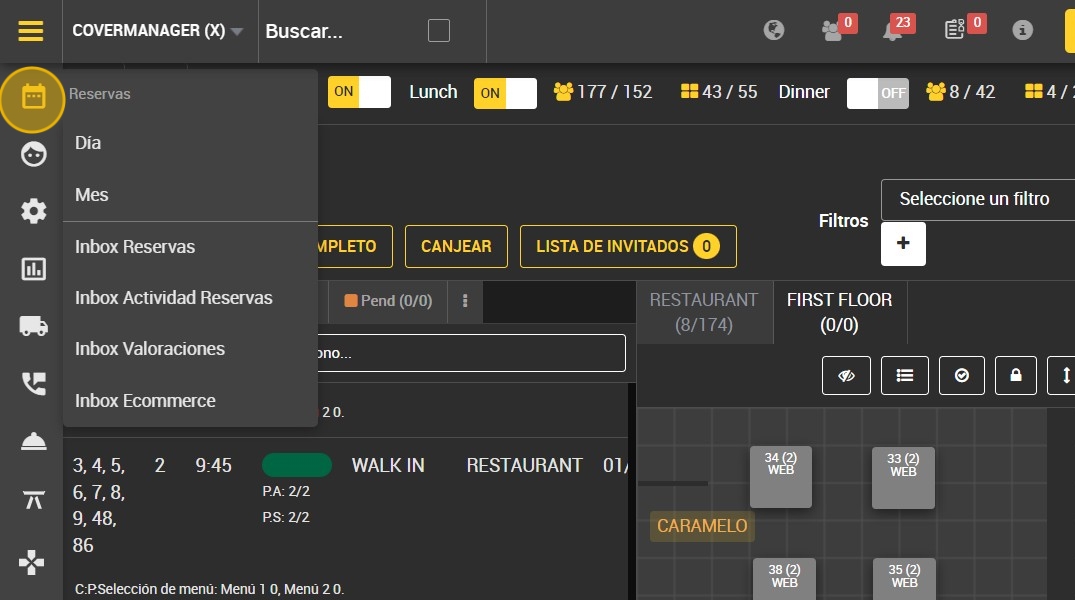
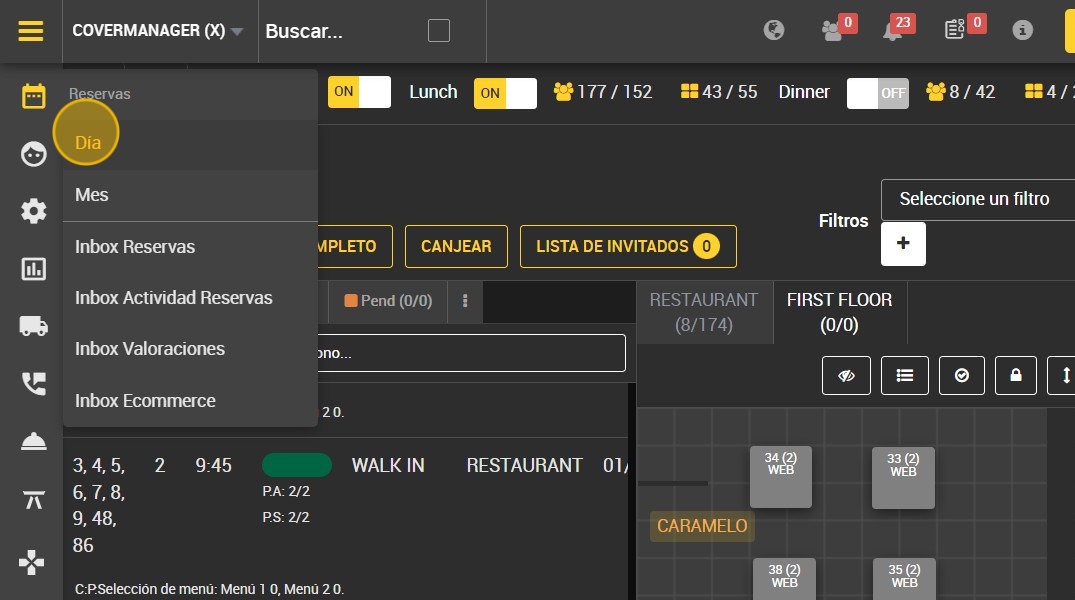
2. Click "Day".
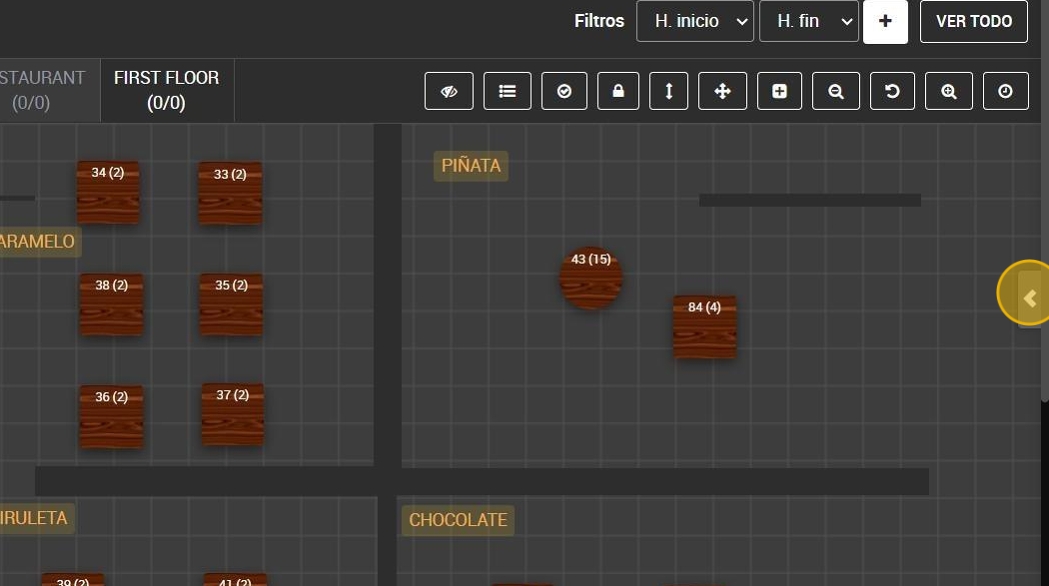
3. Click on the arrow on the right side of the screen.
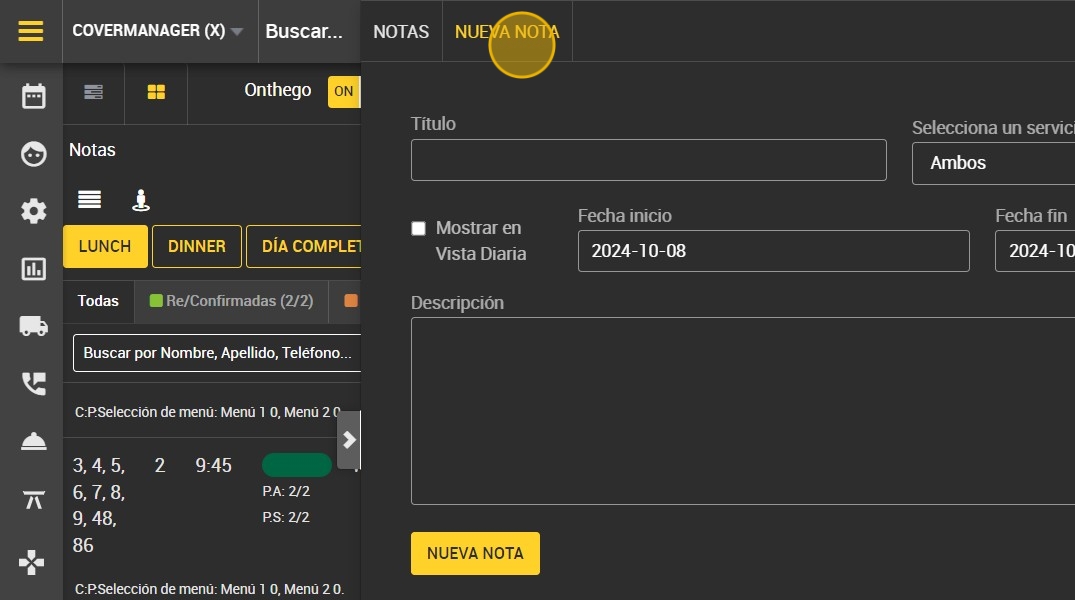
4. Click "NEW NOTE".
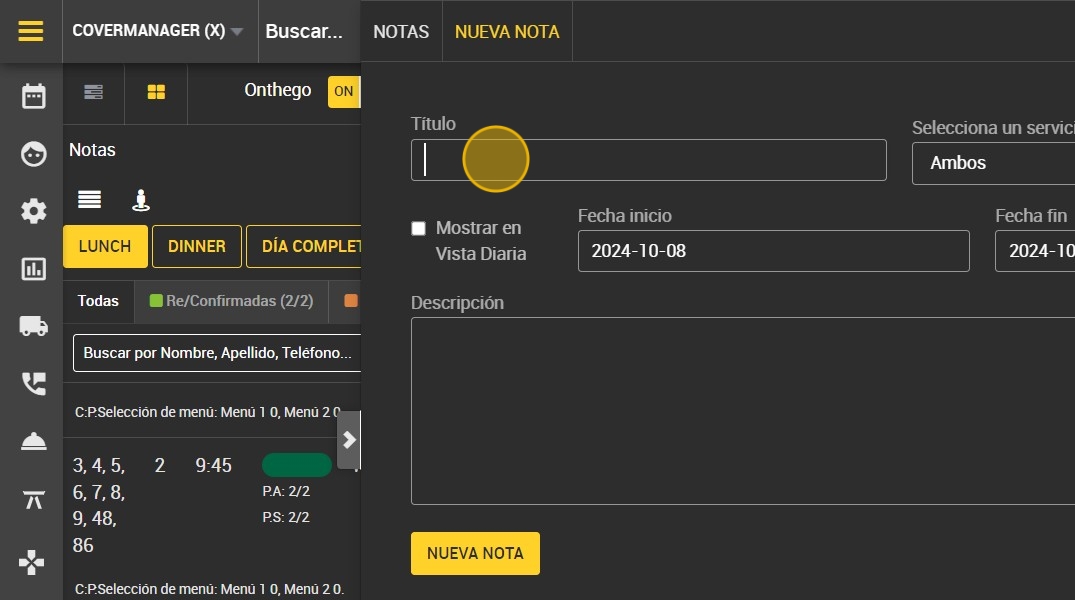
5. Write a title.
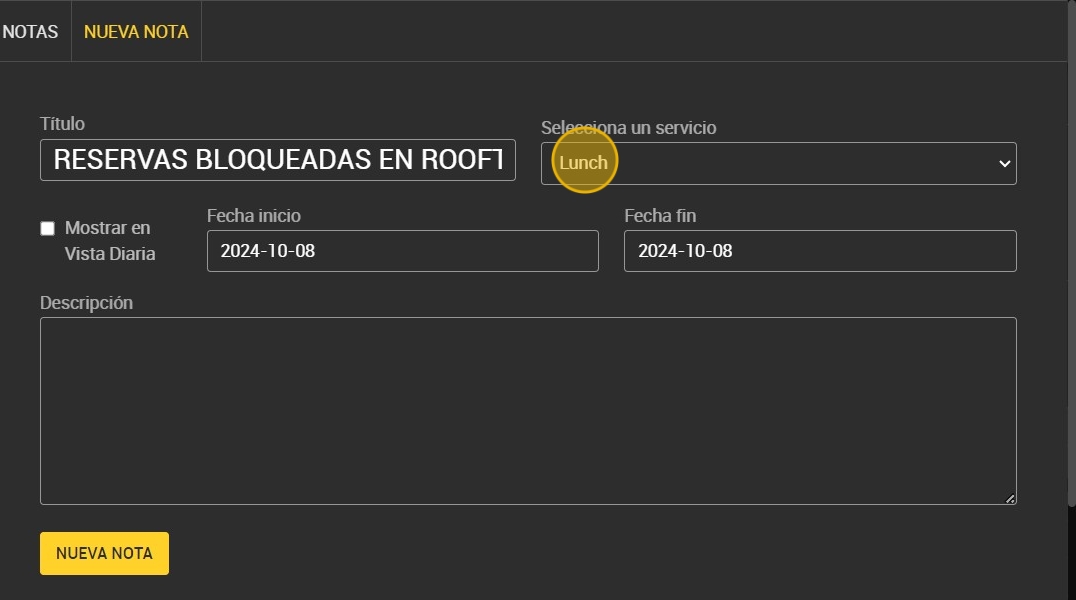
6. Select a Lunch/Dinner service.
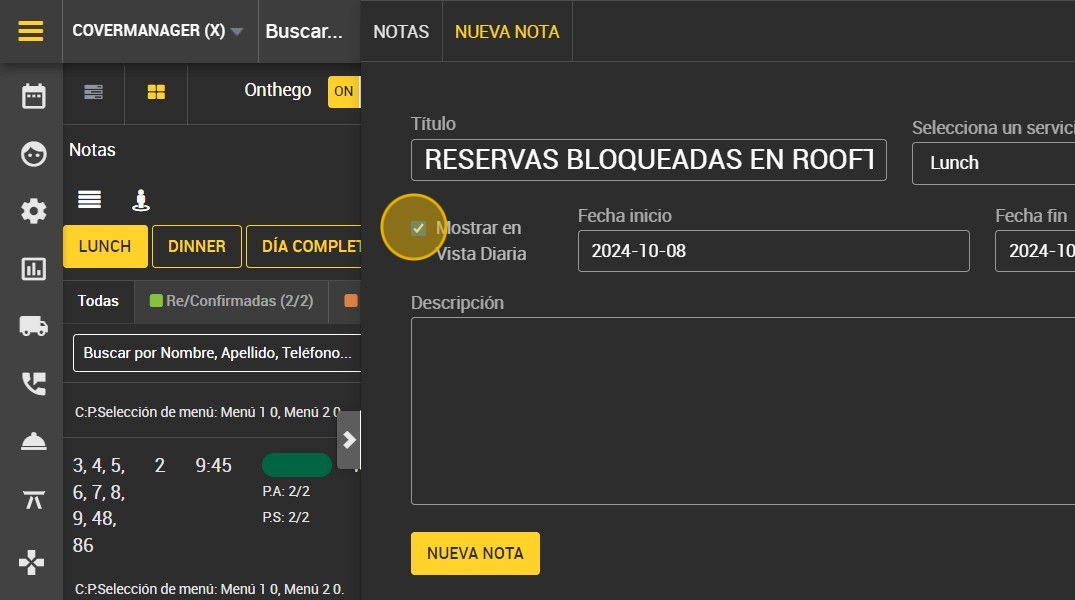
7. Click on "Show in daily view".
8. Select the start date.

9. Select the end date.
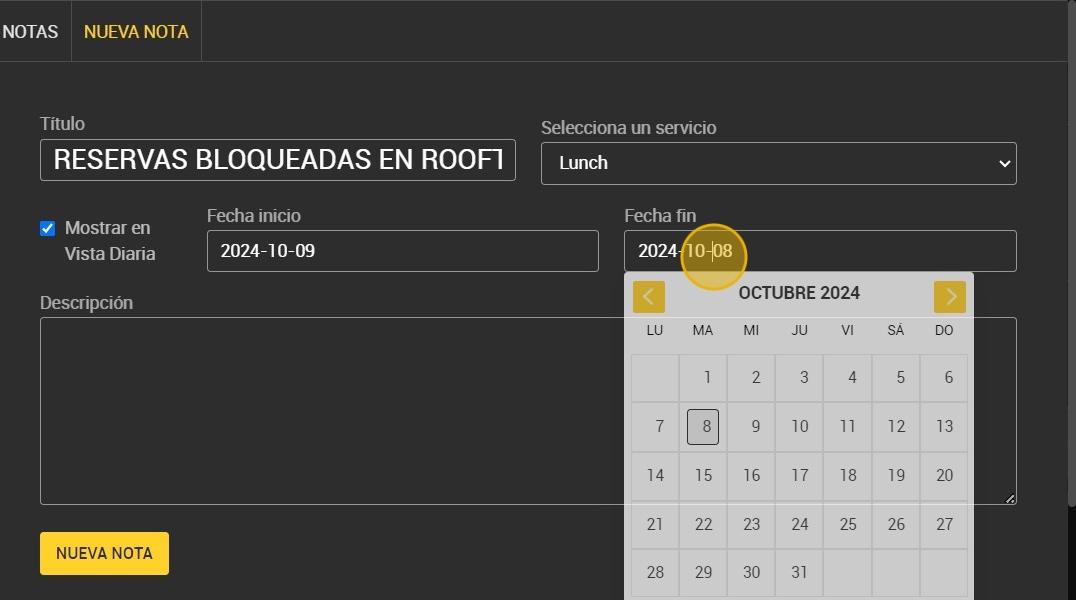
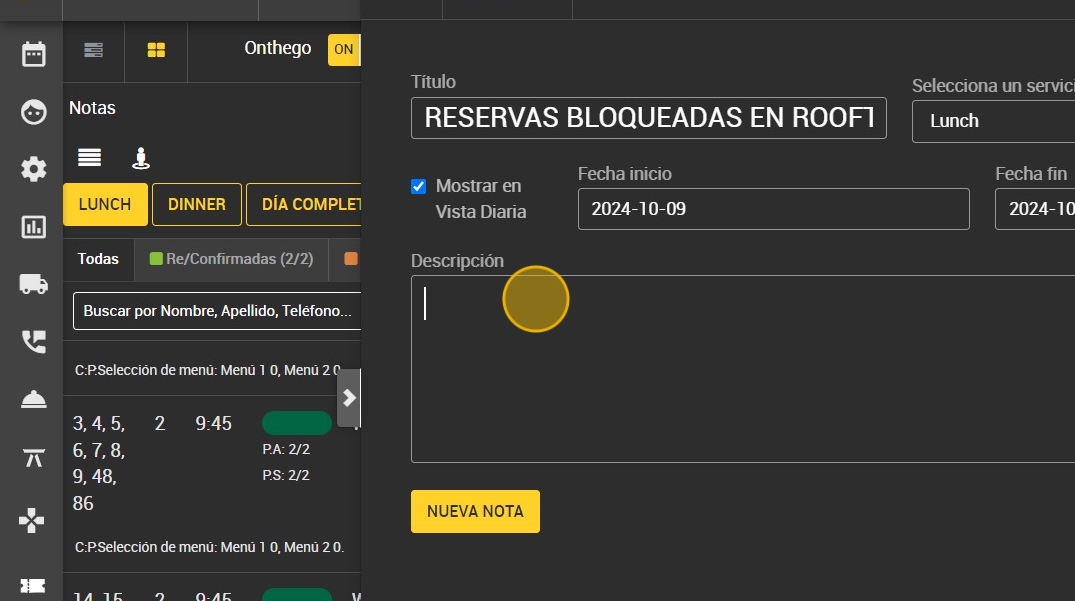
10. You can add a description if you wish.
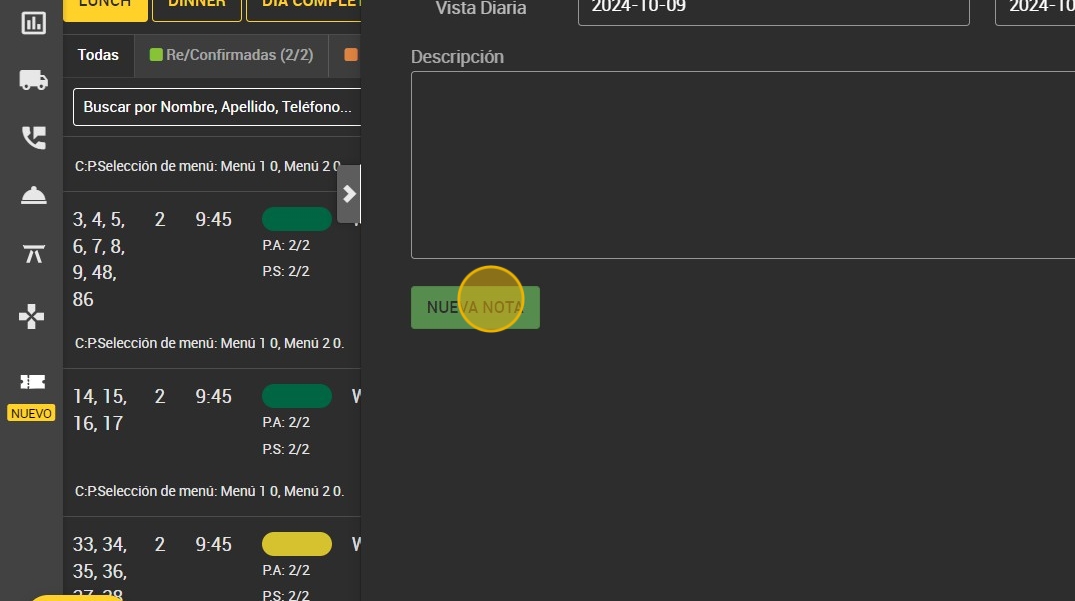
11. Click on “NEW NOTE” to finish creating the note.
12. At the top right of the screen, you will find the note you have created.