
This guide offers a practical resource for managing table reservations efficiently and effectively. It provides a clear step-by-step on how to make, modify and block reservations, as well as assign waiters, which facilitates organization in a service environment. By following this procedure, users can optimize their time and improve the customer experience. Ideal for those looking to simplify reservation management in a restaurant or event.
1. Click on the calendar on the left side to open reservations.
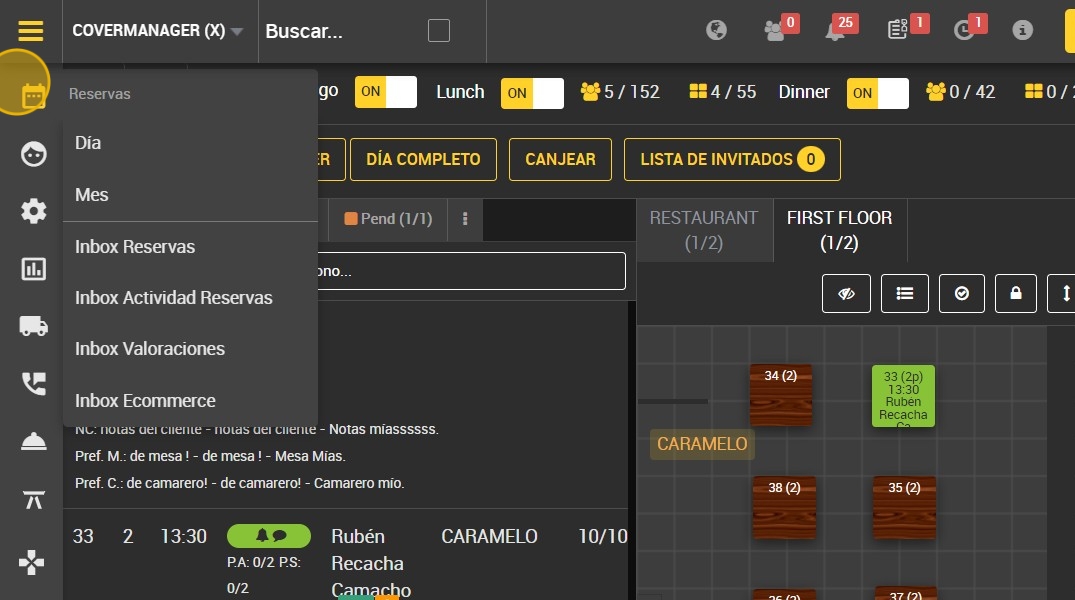
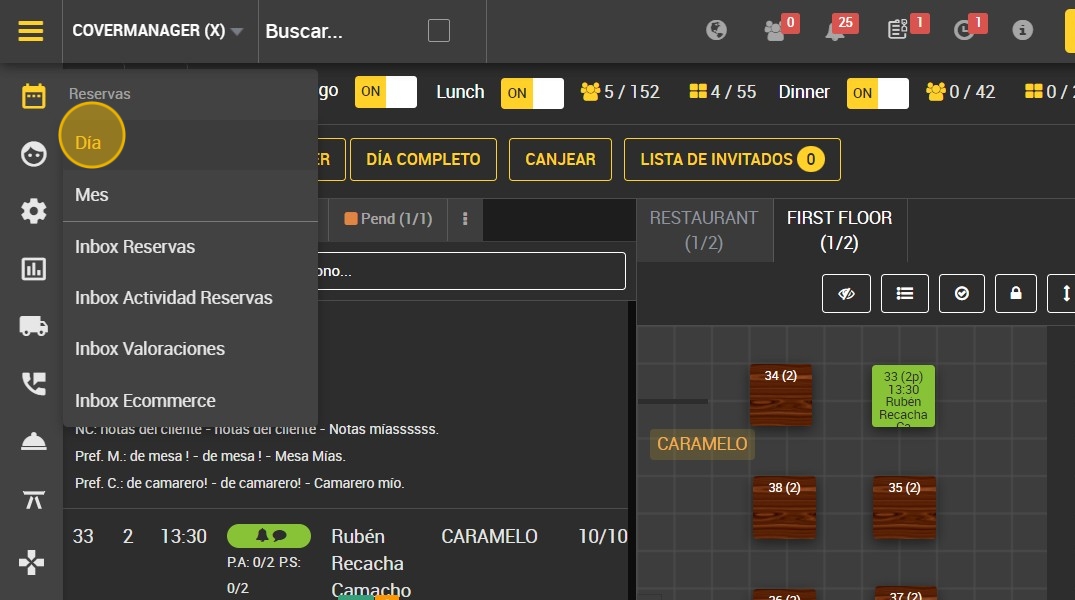
2. Click “Day”.
3. Click on the table you wish to modify to see the different options available.
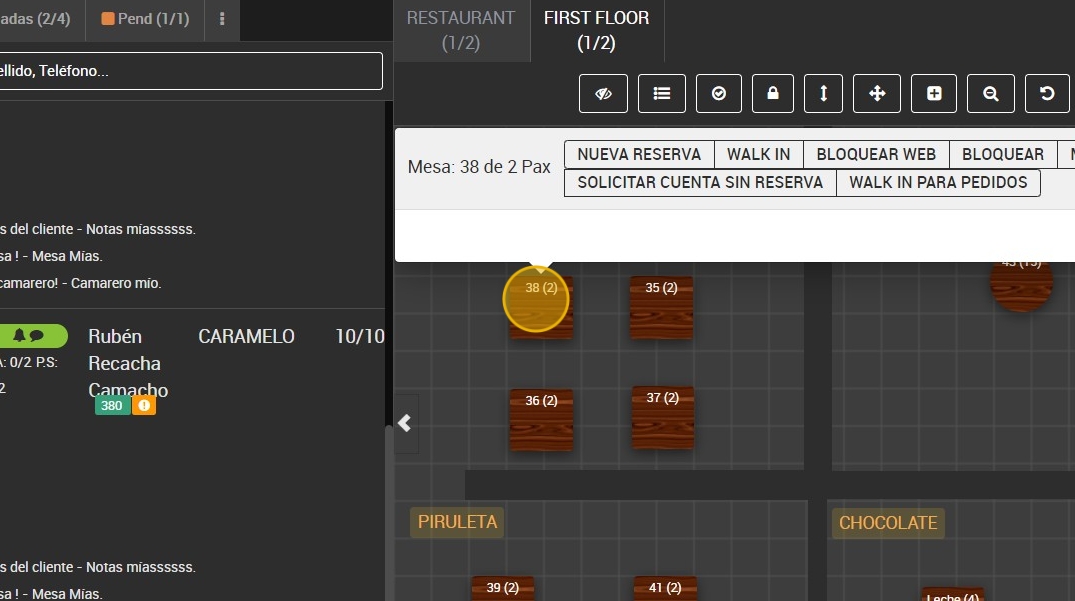
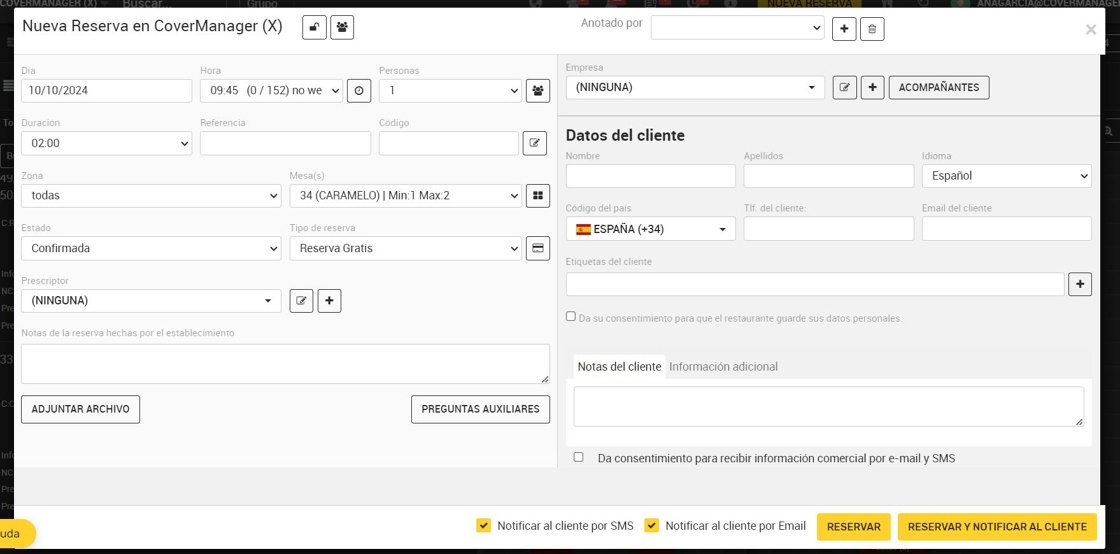
4. Click here to make a new reservation.
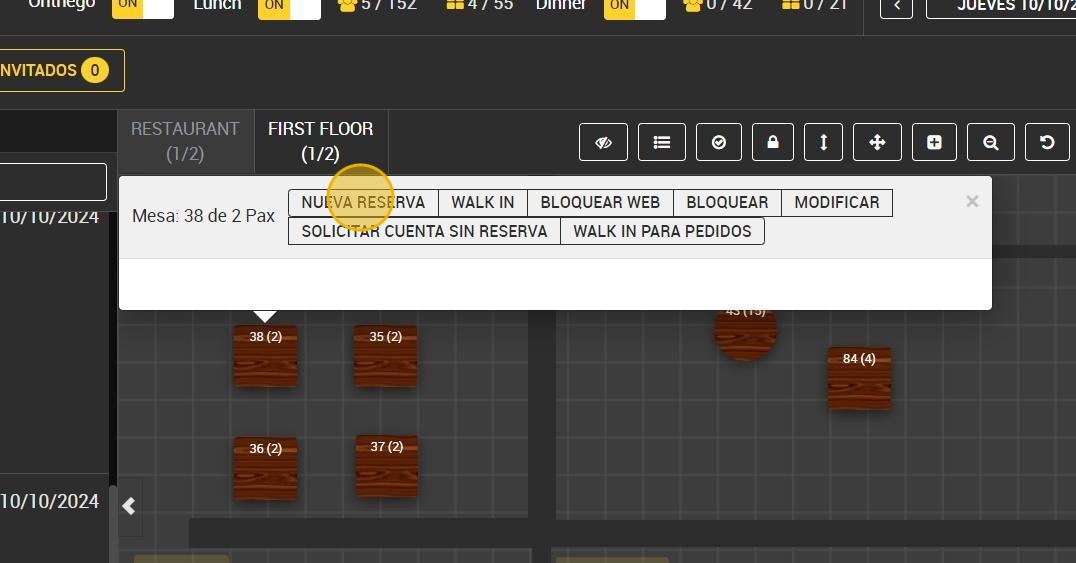
5. Fill in required information to make the reservation.
6. Click to create a WALK IN (walk-in customer).
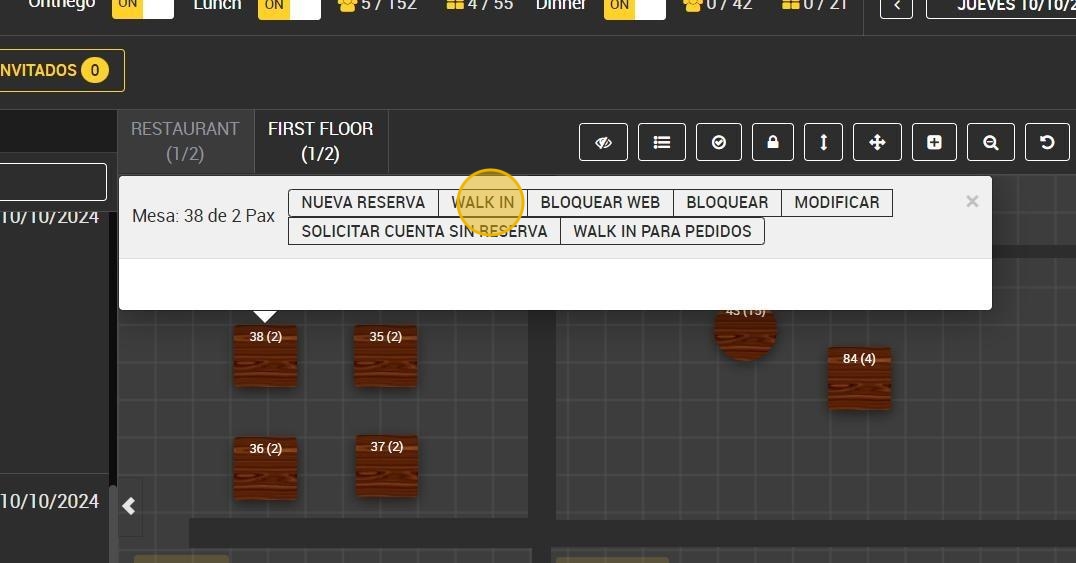
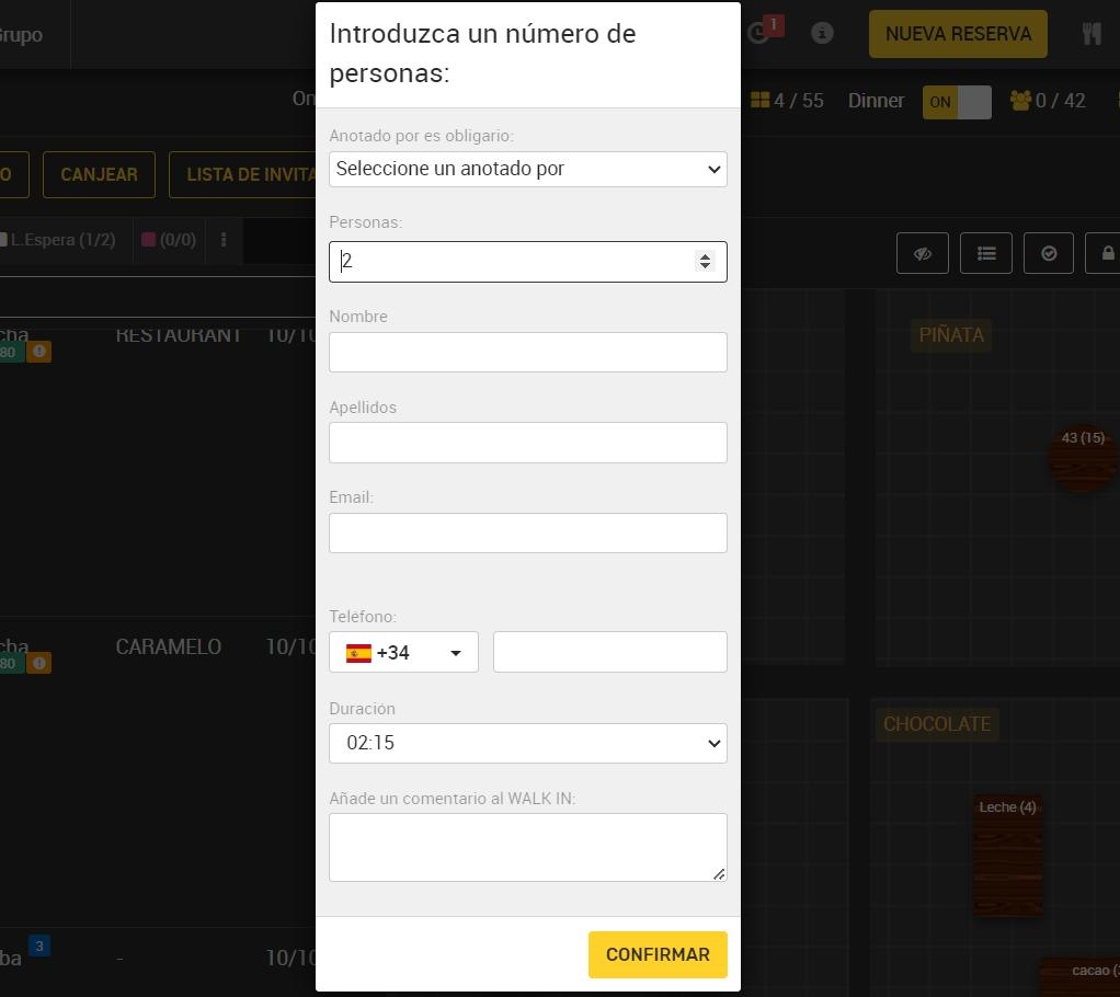
7. Enter the number of people in the reservation and click on confirm.
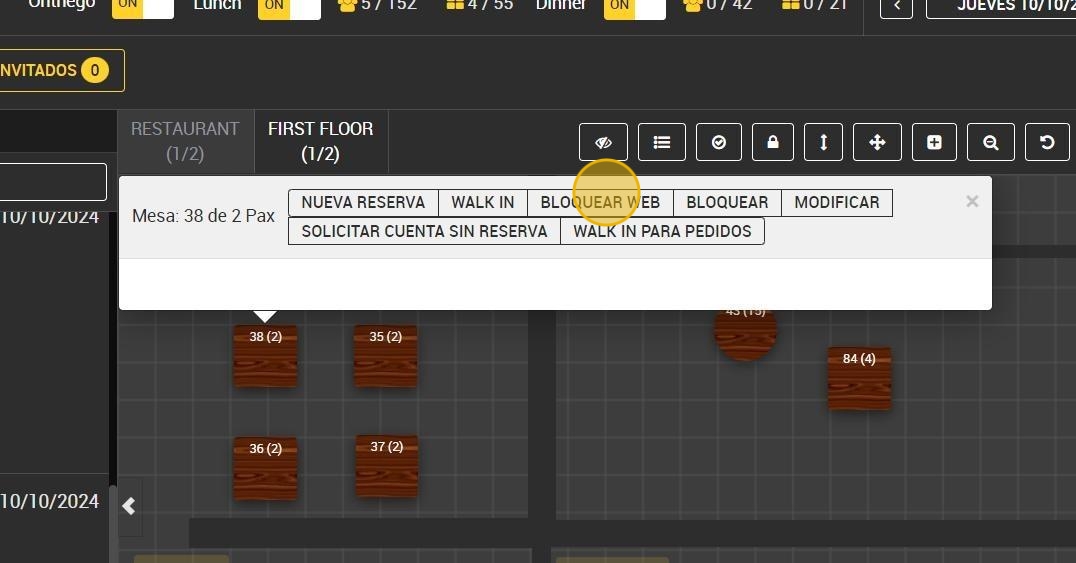
8. If you click on “BLOCK WEB” the table will be gray on the map and not available for online reservations, but can be assigned manually.
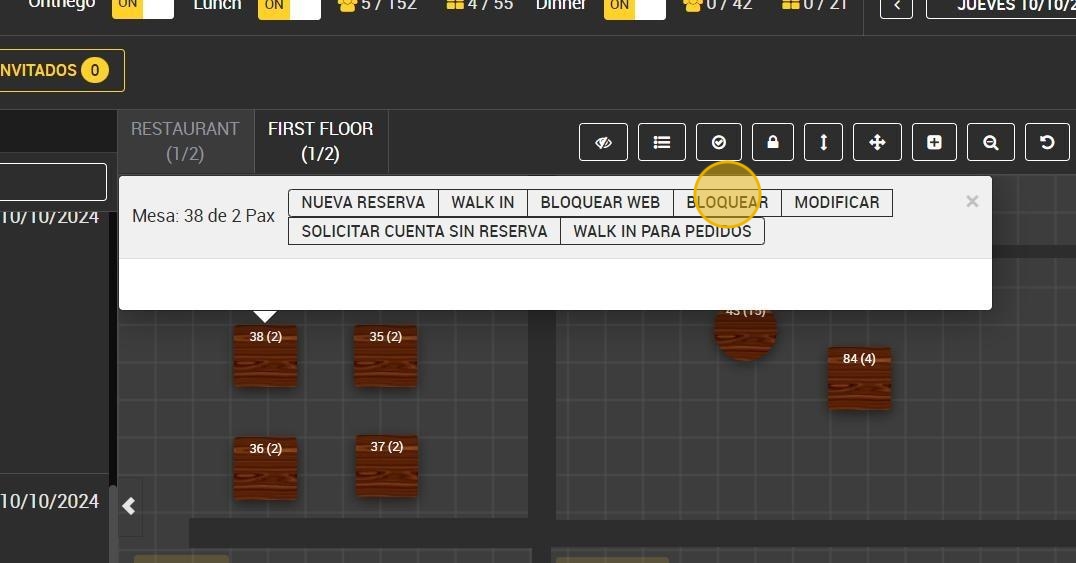
9. Click on “BLOCK”, the table will be black and not available for any type of reservation.
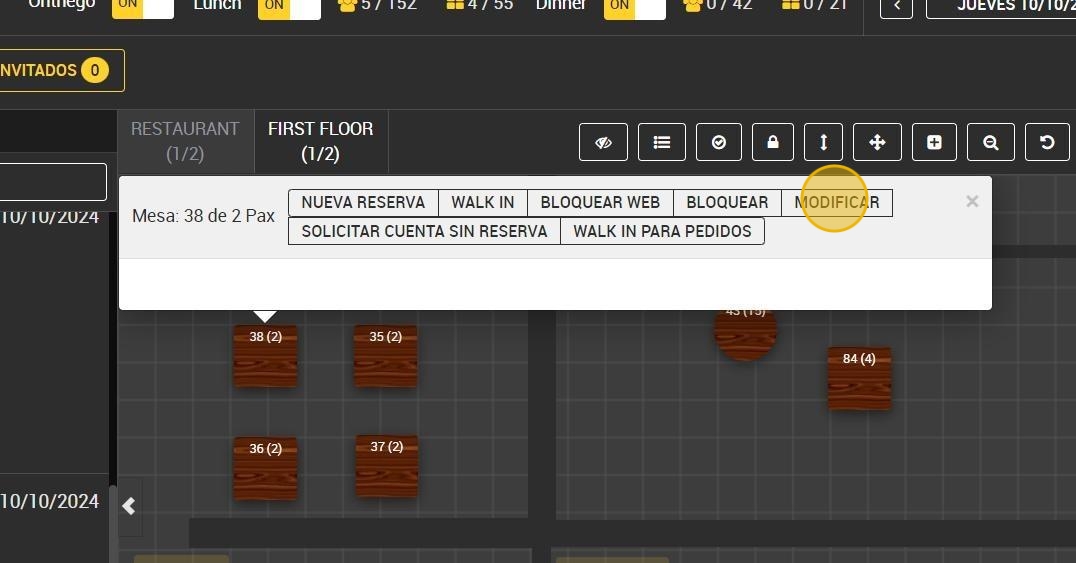
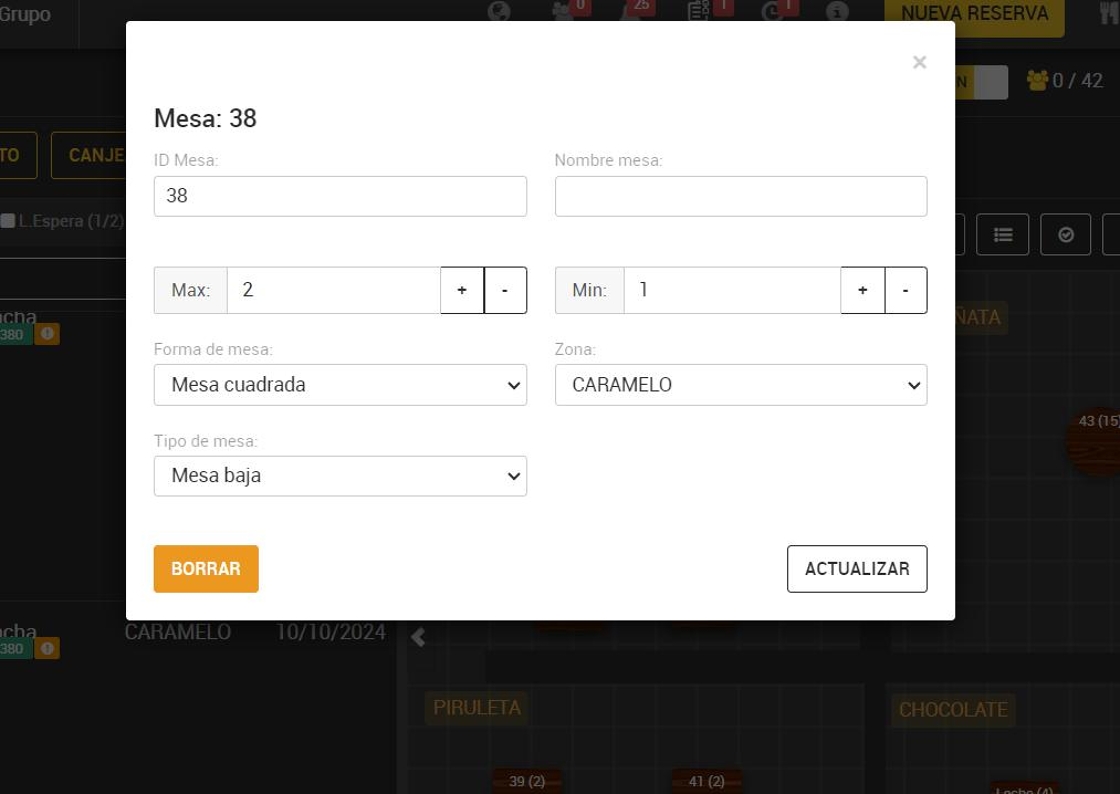
10. Click on “MODIFY” to edit the reservation information.
11. After clicking on modify, you can edit the reservation information as needed (time, number of guests, change the assigned table, etc.).
12. Click on “WAITER” to assign a waiter to the table.
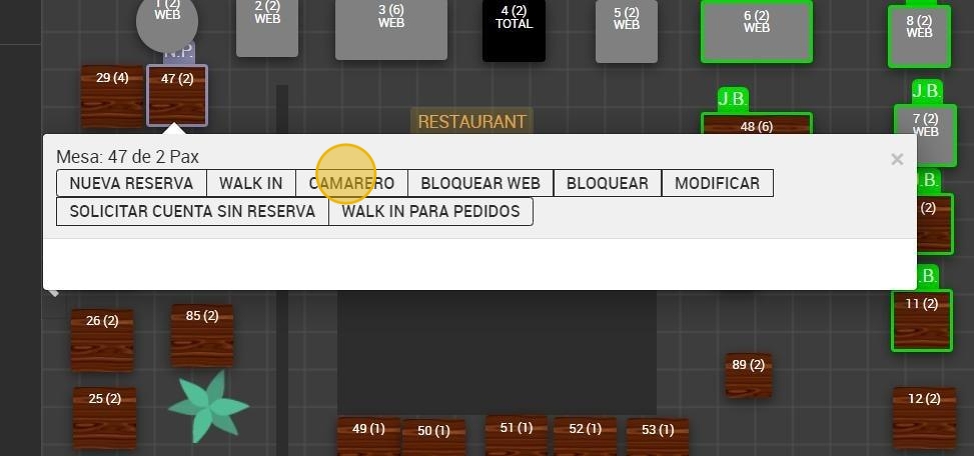
13. Click on the waiter you wish to assign to the table.
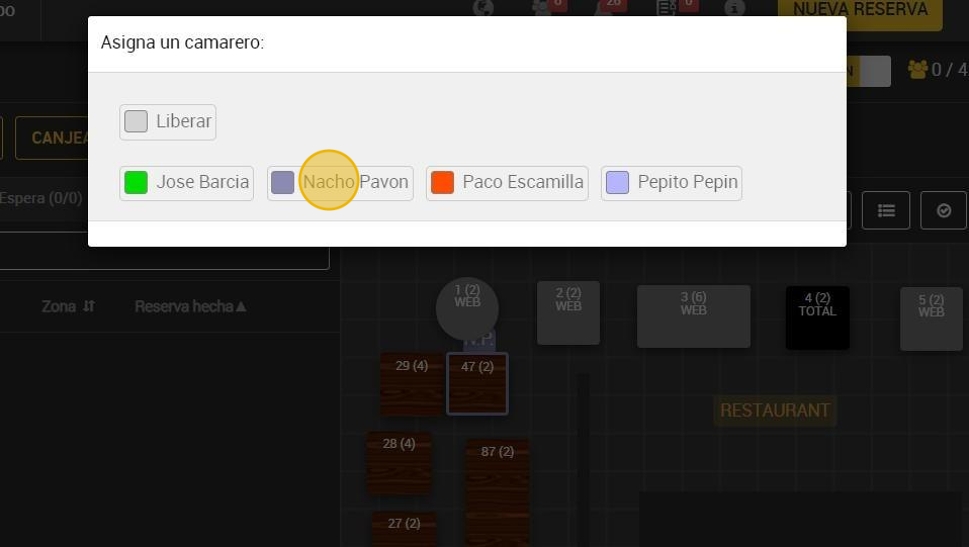
Alert: The waiter's assignment will be for that day only.