
This guide is essential for those who manage bookings, as it provides a clear process for accessing and customizing customer lists, improving organization and efficiency in managing information. It allows for easy editing of preferences and categories, as well as providing print options for easy on-site viewing. By following these steps, users will be able to optimize their booking management and adapt to the specific needs of each shift.
1. Click on "BOOKINGS".

2. Click "Day".

3. In each reservation we will see the information of each customer.

4. To modify them or to see the list required for the booking shift, select: “PRINT MEAL LIST”.

5. Here we can customize our list and add or remove the categories we are interested in.

6. Example:

7. To show/hide, drag the column from its place of origin to the destination, click and move:
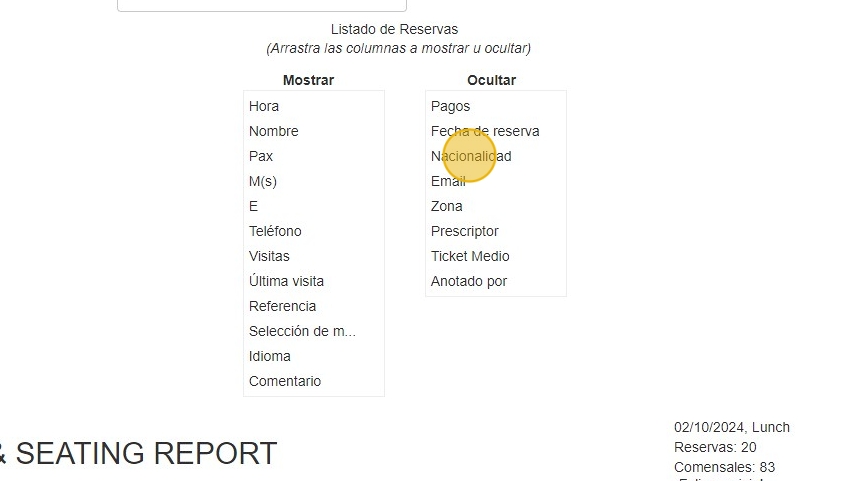
8. Moves diagonally.

9. New location.
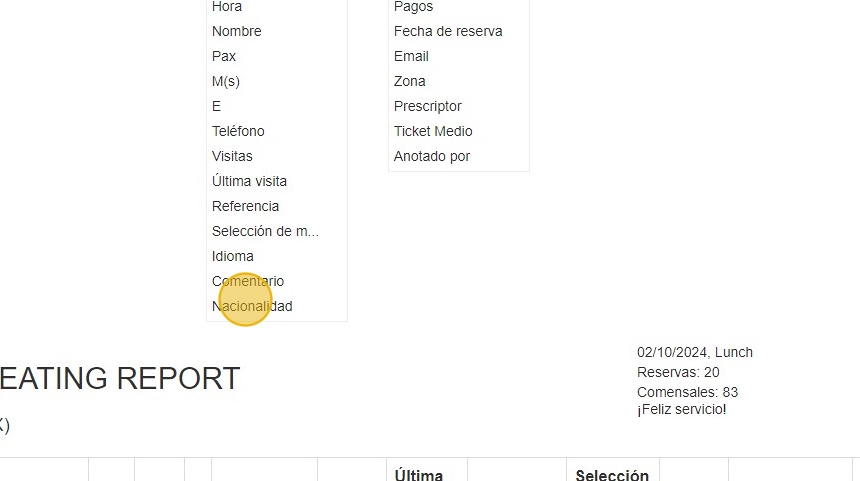
10. Print option
