
This guide provides essential insights into understanding customer behaviors and reservations in a restaurant setting, allowing users to analyze data effectively. By utilizing various filters, such as date ranges and reservation statuses, users can tailor their reports to meet specific needs. The ability to view information in both graphical and tabular formats enhances clarity and accessibility, making it easier to identify trends and optimize operations. Overall, this guide is invaluable for restaurant managers seeking to improve customer service and operational efficiency.
1. Click on the “reports” icon.

2. Click "Behaviors".

3. You can see how “your customers”, “your tables”, “your reservations”, “your users/waiters” and “your restaurants” behave.

4. You can choose between the date of the booking or the realization of the booking. You can also set the option to make 15 minutes intervals and the option to export all time slots.

5. You can choose to view the number of reservations or the number of people.

6. You can select the status of the booking you want to view.

7. You can choose to see all nationalities, or only Spanish or non-Spanish nationalities.

8. Select the start date and end date.

9. Here you can consult the report broken down by hours and days of the week. Each color represents a different meaning.

10. It can also be displayed in table format.
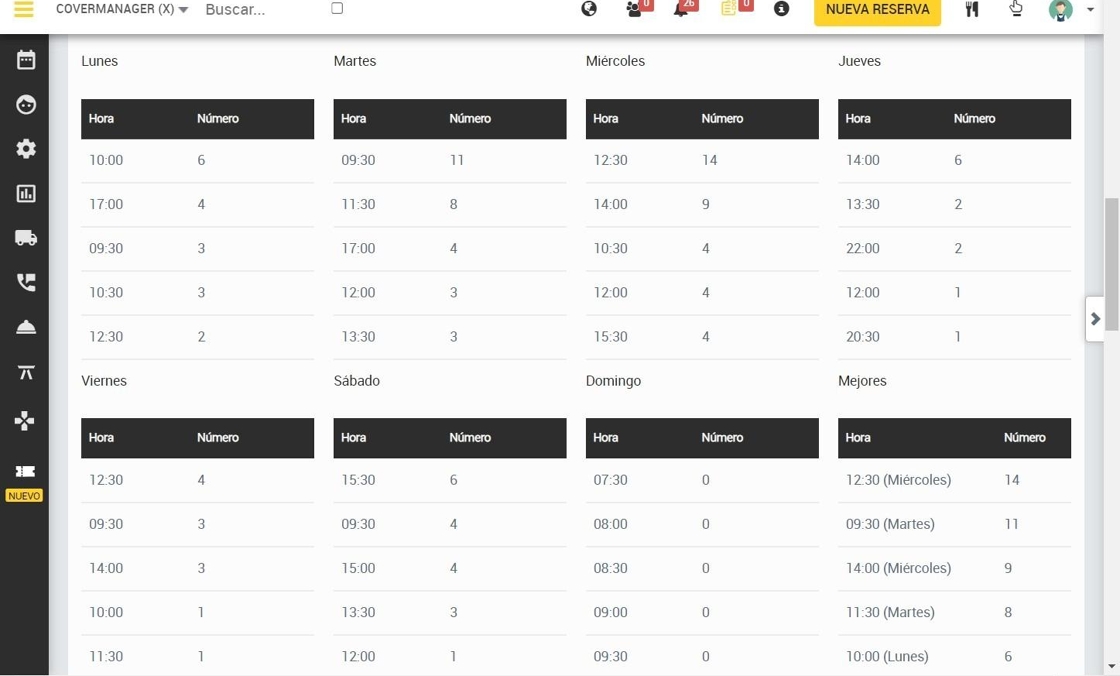
11. Hourly occupancy density can be displayed.

12. It can also be displayed in table format.
