
This guide provides a step-by-step process for efficiently managing reservations using Cover Manager, ensuring that users can optimize their reservation system. By following these instructions, restaurant staff can easily add customers to a waiting list, notify them of table availability by SMS and manage confirmations seamlessly.
Tip: To activate On The Go follow these steps:
1. Click on the drop-down menu of your user and go to the “settings” section.

2. Click "Customer experience".
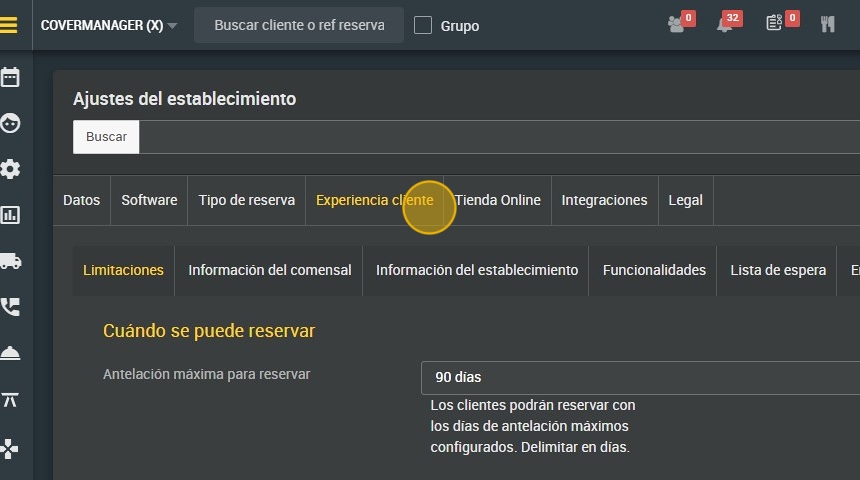
3. Click "Waiting list"

4. To activate On The Go click “yes”.

Tip: On The Go: how it works
5. Click on the calendar on the left to open bookings.

6. Click "Day".

7. Click "ON THE GO".

8. Fill in the required customer data (The system will automatically retrieve the data if the customer has visited the restaurant before).

9. Select the number of people to be seated at the table.

10. Click on “ADD TO ONTHEGO WAITING LIST” to confirm.

11. Click "ACCEPT".

12. When a table becomes unoccupied, click on “NOTIFY”. The customer's booking will go to “blank” status and an automatic SMS will be sent to the customer.

Tip: The customer will receive an SMS with the option to confirm or cancel the booking. If confirmed, it will go to “green” status in the system. If canceled, the booking will be deleted.
13. If confirmed, drag the reservation to the assigned table on the restaurant map.
